Recipe: Fill in the Legal Questionnaire
The legal settings tell TrustSource CE how you use and distribute your software. They decide which license obligations apply and which licenses count as violations. The Legal settings wizard asks for them one question at a time.
Note
Time: a few minutes per project, and a few minutes per module whose distribution differs.
You'll need: the role Manager or Compliance manager, as default project or compliance manager of the project or module, or on a project or module without such an owner.
The questionnaire has two parts:
- Project level - commercial use, operating model and IP protection. Fill it once per project.
- Module level - trade secrets, sub-licensing and distribution. Fill it per module.
Part 1 - the project
- Open the project, select Settings and the Legal tab.
- Select Start wizard. The Legal settings wizard asks three questions; move with Next and Back:
| Step | Setting | Answers |
|---|---|---|
| Question 1 | Commercial Aspects | Usage fee, license fee, only a support fee, another type of commercialisation, or not commercial |
| Question 2 | Operating Model | Software as a Service, managed service at the customer's location, traditional software distribution, or part of an appliance or device |
| Question 3 | Inbound IP Protection and Outbound IP Protection | Whether to flag licenses without explicit contributor patent grants, and licenses that end when you enforce your own patents |
- Select Finish. The app confirms Legal settings changed!.
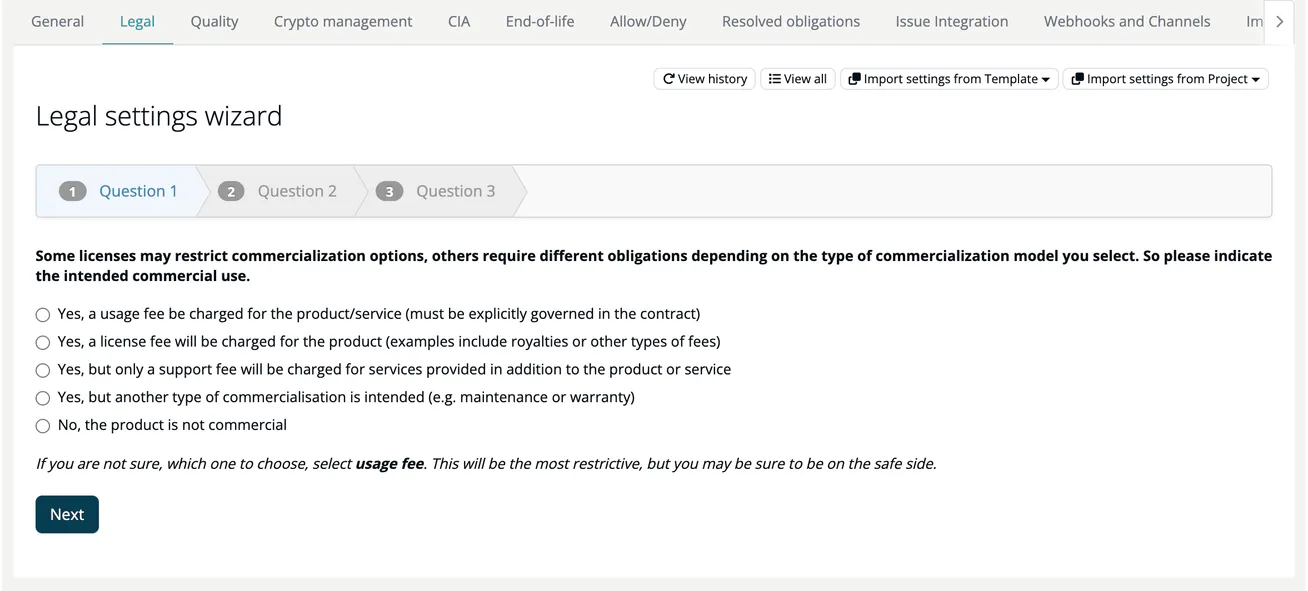
If you are unsure, the app recommends the most restrictive answers: usage fee for the commercial aspects and the embedded (appliance) model for the operating model.
View all shows the same settings as one form; View history lists earlier values. Propagate settings to... copies the settings to other projects, and Import settings from Project or Import settings from Template takes them from another project or from a legal template.
Part 2 - the modules
- Open the module, select Settings and the Legal tab. The project's answers are shown at the top.
- Select Start wizard and answer:
| Step | Setting | Answers |
|---|---|---|
| Question 1 | Trade Secret Protection | Trade secrets need to be protected, or may be released |
| Question 2 | Sub-licensing alert | The module is licensed under a proprietary license, or released as open source |
| Question 3 | Distribution | On-premise installer or download; integral part of a shipped appliance, device or software; exchangeable add-on; client-side library in a web solution; server-side library not distributed; or not distributed at all |
- Select Finish.
Propagate settings to... copies the module's answers to other modules, for example All my project modules. Import settings from Module and Import settings from Template work as on the project.
What happens next
On the next analysis, the licenses of the module's components are evaluated against these settings by the bundled ts-legalcheck service. The results appear on the module's Legal tab as obligations and violations, and in the license check, which refuses to check a project or module whose legal settings are incomplete. Record how you meet obligations on the Resolved obligations settings tab.
Tip
If many projects share the same answers, create a legal template once under Administration → Settings → Legal templates and import it into each project. See Legal templates.