Component Details
Note
Required role: any role with access to the project can read. Acting on a component needs Manager or Compliance manager, as noted per action.
TrustSource CE shows a component in two places: the Component Details side panel inside a module, which describes the component as it appears in this module, and a full Component Details page, which describes the component itself.
The side panel
Click a row in the List or Tree view of a module. The panel opens on the right. A row of icons at its edge jumps to a section (Details, Versioning / End-of-life, Vulnerabilities, Encryption, Licenses, Tasks, Comment, History); the head shows the component name, its status dot and Link (link the component with a module or release of your company).
| Section | What it tells you |
|---|---|
| Details | Key and description. The external-link icon opens the full page. |
| Set the license / License set manually / Select license | Shown when the license has to be set by hand, or for the root component. See Manual license resolution. |
| End-of-life, Versioning | Lifecycle and version status of the component. A disabled analysis links to the module settings. |
| Crypto algorithms, AI / ML models, Export control | Cryptographic algorithms and AI models found in the component (a red B marks an algorithm denied by company policy), and its export-control status. |
| Version | Per version: Vulnerabilities, and for each dependency path the license with its status, violations, obligations, Settings used for this analysis and Settings. |
| Commercial settings | For components with a commercial license: Component is COTS (commercial off the shelf) and its commercial terms. |
| Tasks | For a component with a problem, a link to create an issue in Jira, TFS or GitHub, plus Copy details. Otherwise No problems known, component is Ok. |
| Comment and Comments | Add a comment, or Set status to OK, Warning or Violation with a comment; Reset component removes the manual status. |
| History (up to 100 last entries) | Load 30 days history shows the changes of the component in this module. |
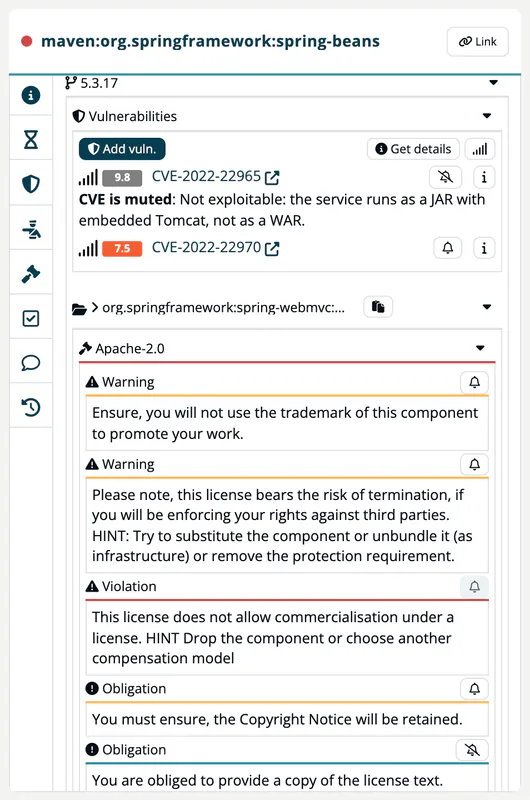
Vulnerabilities
The Vulnerabilities section lists the CVEs known for the version, each with confidence, CVSS score, name and description. A CISA icon marks known exploited vulnerabilities. Get details adds the weakness, vector, exploit and impact scores; Less details hides them. The signal button sets the minimum confidence shown; hidden entries are announced with Some vulnerabilities are hidden via Confidence filter.
Add vuln. opens Add manual vulnerability to record a vulnerability that the data sources do not know for this version. Without any known vulnerability the section reads No vulnerabilities known.
Actions in the panel
- Mute a vulnerability: each CVE has a bell icon. Choose a reason: False positive, not applicable to us, Vulnerable code not in use, Risk is tolerable, won't fix, Fix is about to be implemented, Fix has been provided, or Other (enter your own reason and confirm with Mute for this module!). The CVE is then muted for this module; click the crossed-out bell to unmute. Requires Manager. Muted CVEs are listed under Allowed vulnerability.
- Change selected license: for a component that includes two or more licenses (Multi - license), choose exactly one. Run Analyse afterwards, because the views show analysis results. Requires Manager or Compliance manager.
- Resolve this obligation / Reopen obligation and Accept risk of problem: record a justification for an obligation or a legal rule, or take it back. A resolved entry shows Resolved in ... with the comment. Requires Manager.
- Set component to OK on End-of-life, Versioning and Export control overrides the automatic status after you confirm; Reset component status removes the override.
- Settings of a path: Component was not modified (when unticked, enter Changes url and Modification notice), Loose coupling architecture and Description / purpose. The two checkboxes need Manager and mark the module for a new analysis. Settings used for this analysis shows the values the last analysis used, for example Component has not been modified and is tightly coupled.
The full page
The external-link icon in Details opens Component Details in a new tab. It shows:
- Information: key, purl, homepage, repository, language, crypto algorithms, AI / ML models and last update.
- Comment and commercial terms, if any.
- Versions: a filterable list. Each version shows the release date, purl, licenses (linked to the license page), checksums, copyright and known vulnerabilities.
The Edit button appears for Company component manager and opens the component editor. See Component Lake and Component Manager.