Guide, Tour and Demo Project
TrustSource CE helps you get started in two ways: a guide panel with guided tours that explain the screen you are on, and a demo project that fills an empty company with a sample module.
The guide panel
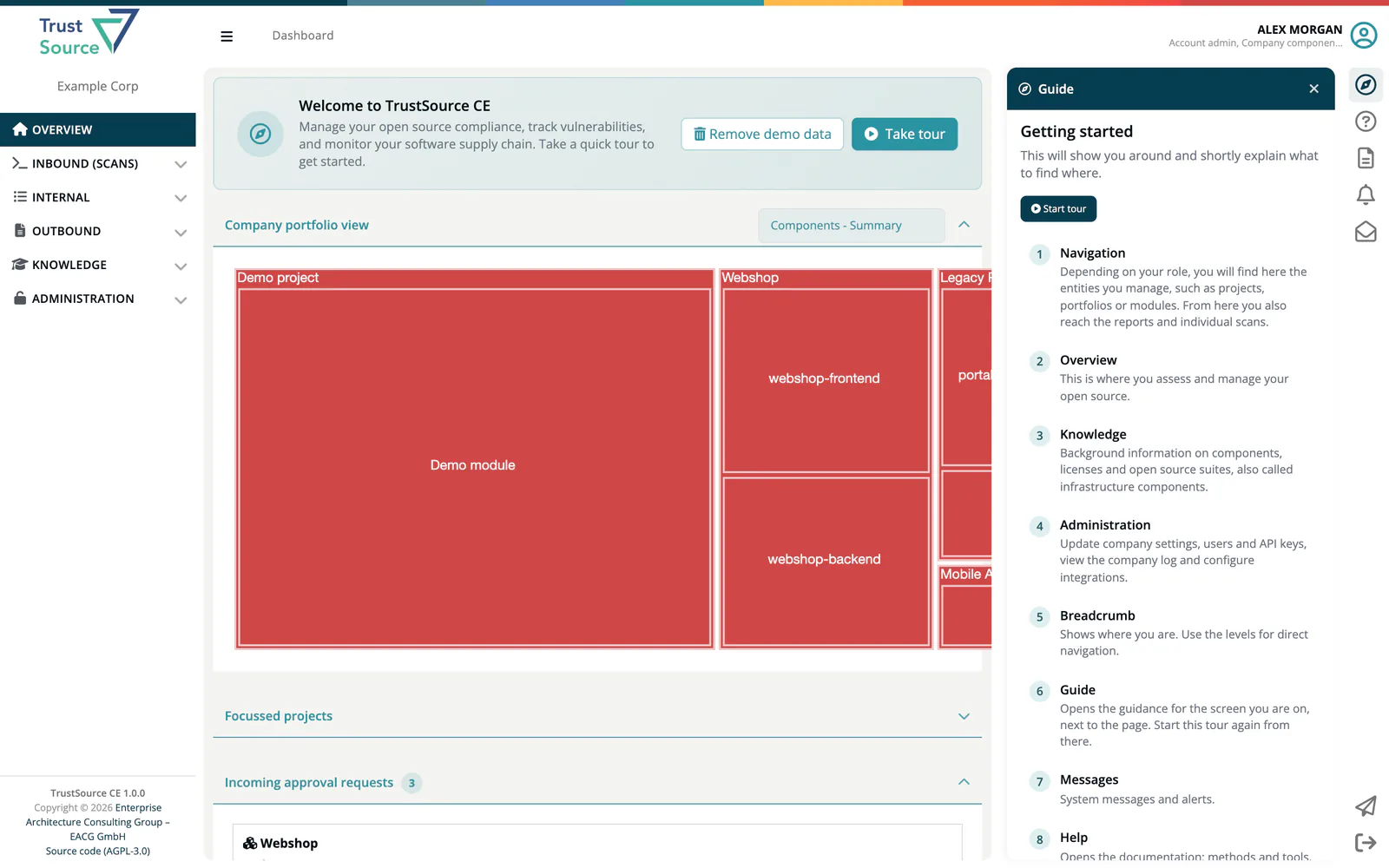
The compass icon at the top of the right bar (Guide for this screen) opens the Guide panel next to the page. Click the icon again or the × to close it.
The panel shows the guide for the current screen:
- The guide's title and a short summary.
- Start tour, which runs the guide as a guided tour.
- A numbered list of steps. Click a step to scroll to the element it explains and outline it briefly. A step whose element is not on the current view is marked Not shown on this view.
- Documentation and help, which opens the TrustSource CE README on GitHub.
Screens without a guide show There is no guide for this screen yet.
Available guides
| Screen | Guide | Steps |
|---|---|---|
| Dashboard | Getting started | Navigation, Overview, Knowledge, Administration, Breadcrumb, Guide, Messages, Help, API documentation, Sign out |
| Module views | Module | Module actions, Analysis and views, Statistics, Filters, Components, Component details, Paging |
All views of a module share the Module guide. Steps whose element is not on the current view are skipped by the tour.
Guided tours
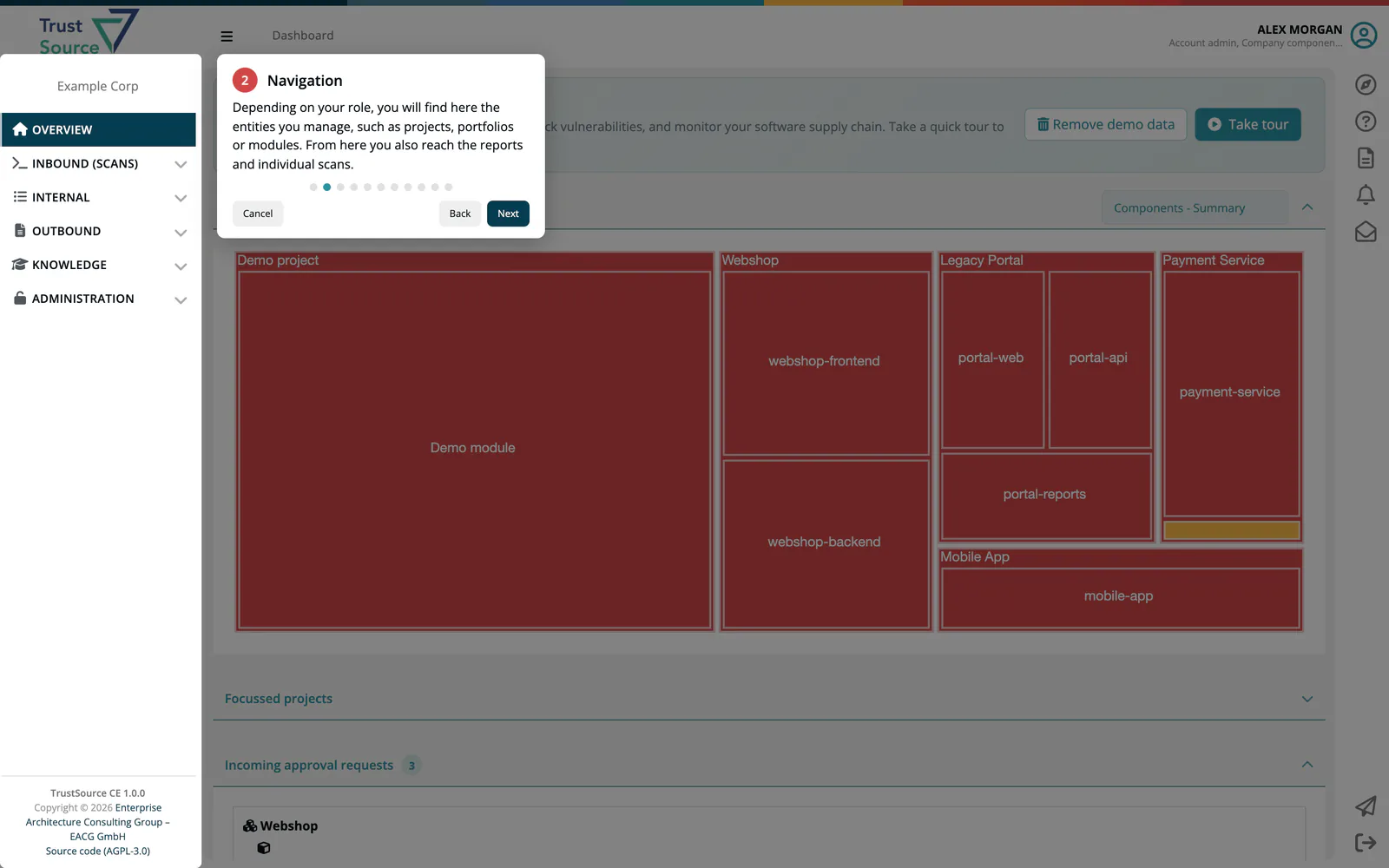
A tour dims the page and highlights one element at a time, with an explanation next to it.
- Start a tour with Start tour in the guide panel. On the dashboard, Take tour in the welcome banner starts the Getting started tour, and on a module page Take tour starts the Module tour.
- Move with Next and Back, or click a step dot. The last step shows Done.
- Cancel or Esc ends the tour. The arrow keys move forward and back.
- The tour ends when you navigate to another page.
The Getting started tour starts by itself the first time you open the dashboard. After that it only starts when you ask for it.
Demo project
The demo project lets you try TrustSource CE without your own data: one project with one module whose sample scan runs through a real analysis.
Note
Required role: Compliance manager or Manager.
Load the demo project
Use either of these:
- On the dashboard, click Load demo project in the welcome banner. The button shows while your company has no modules, and until you have loaded the demo once.
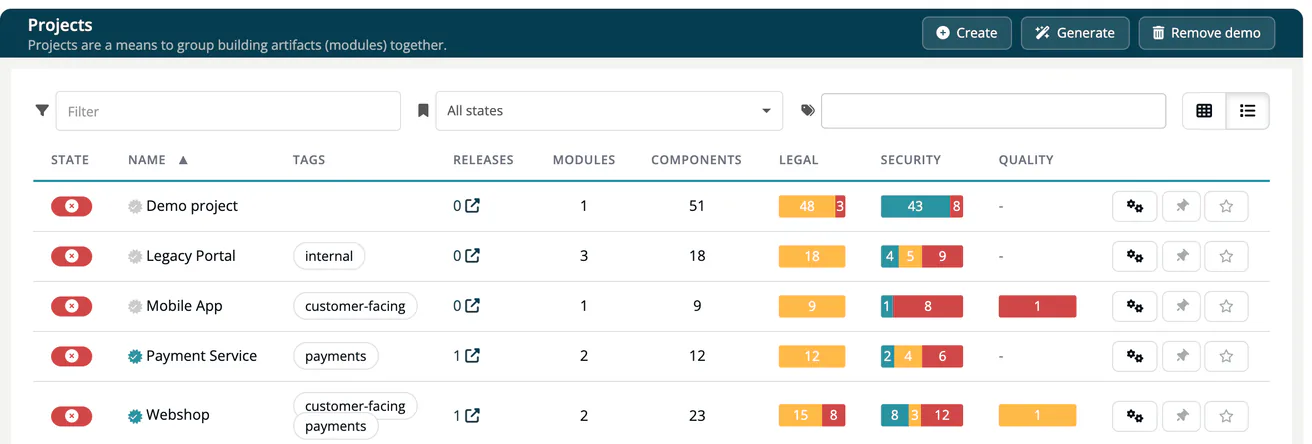
- In Internal → Projects, click Generate (Add demo project with sample module).
TrustSource CE creates a project named Demo project with a module named Demo module and analyses the demo scan like an uploaded one. The project appears under Projects right away; the analysis results follow once the analysis has finished.
Each company has at most one demo project. If it already exists, the app tells you The company already has a demo project. You can find it under Projects.
Tip
The demo analysis uses the same services as a real one. If license results show only warnings or no vulnerabilities appear, the license check service or the vulnerability lookup is not available; see Scan Troubleshooting.
Remove the demo data
- On the dashboard, click Remove demo data, or
- in Internal → Projects, click Remove demo (Remove all demo projects and modules).
This deletes everything of your company that is marked as demo data: the demo project and module, their scans, test results and analyses, and approvals, notice files, SBOM files and products created from the demo. Drafts are kept. Your own projects are not touched.