Analysis Reports
Note
Required role: every role that sees Internal → Reports (Developer, Compliance manager, Manager).
These reports from the Reports hub analyse one project or module at a time in TrustSource CE. Use them to check licenses, component health and obligations before a release. Reports across the whole portfolio are on Impact and Portfolio Reports; the Vulnerability report has its own page.
How all reports work
- Open Reports in the sidebar and select a tile, or open a report from a project's or module's Reports dropdown. The target is then preselected.
- Pick the project (or All module of project / a single module, where offered) at the upper right. If you see Please select the project to run a report on the upper right, no target is selected yet.
- Read the summary counters at the top, then the list below. Rows are coloured by status (OK, warning, violation).
- Click Export as PDF to download the report with your company logo.
The reports read the latest analysis of each module. A Used modules or Analyzed modules panel shows which modules and analyses were included.
Tip
If the PDF export fails with a logo message, check the logo URL under Administration → Settings → General info. See Company Details.
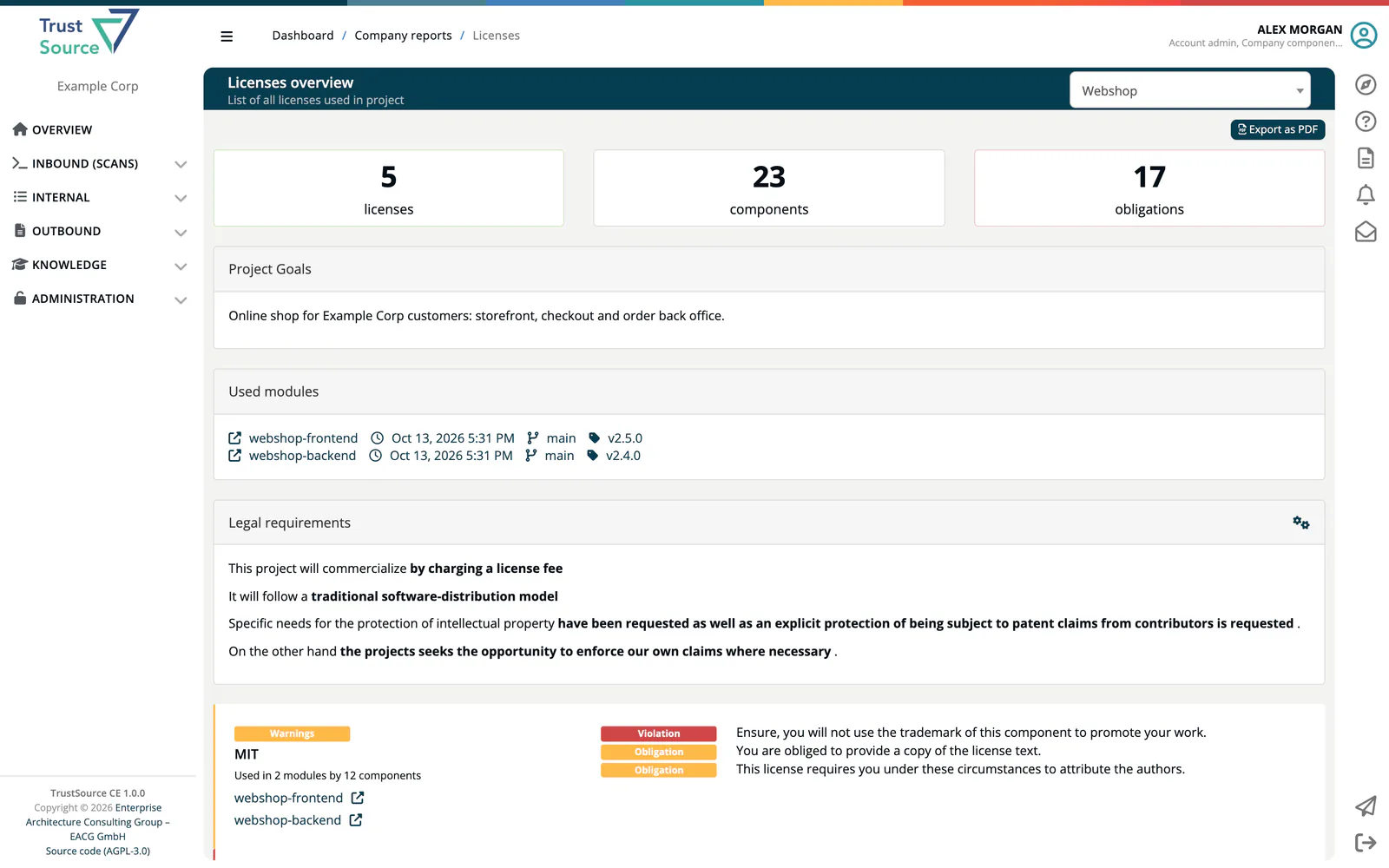
Licenses overview
Lists every license used in the project, with the components using it. Each license shows its warnings, violations and open obligations, and links to the affected modules. Counters: licenses, components, obligations. A Project Goals panel shows the project description (or No project goal was provided.), followed by the project's legal requirements.
Versioning report
Lists components with version problems, grouped by component. What counts as a problem comes from the versioning settings. Counters: components, modules, affected components. Each entry shows the problem text and where the component appears, linking to the module.
End-of-life report
Lists components with end-of-life problems, as defined in the end-of-life settings and the company's end-of-life policy. Select a project or Whole portfolio. Counters: components, modules, violations, warnings. Panels list the Analyzed modules and the Impacted projects.
- Send alert to project manager notifies the project manager.
- Create issue opens a GitHub issue form when a GitHub repository is known for the project. Otherwise Copy details copies the issue text to the clipboard.
Algorithm report
Shows cryptographic algorithms detected in the project's components, with strength, for example AES [256]. Algorithms on your company's deny list in the crypto policy carry a red B label. Counters: modules, components with algorithms. For policy violations across the portfolio, see All bad crypto.
Obligation report
Shows the obligations the licenses of a project or module impose. Choose All module of project or a single module. For a project, Overview of modules shows every module as a tile, coloured by approval status with the release name and comment; click a tile to switch to that module.
Users with the Compliance manager role additionally get Approve the release with Approve and Reject when an approval is initiated. Details: Approve / Reject.
Credits report
Lists the copyright of every component (Copyright not detected if none is found). Choose All module of project or a single module. Counters: modules, different components.
Modification state
Lists components modified in the project. Counters: different components, modules, modified appearances, undocumented changes. Each entry links to the place where the component appears, to the list of changes and to the modification notice. If missing, it reads Changes url has not been provided or Modification notice has not been provided.