Permission Model
TrustSource CE decides what you may do from your roles in the current company and, in project and module settings, from your relationship to the project or module. There are no account types, plans or license flags.
Roles are scoped per company
A role assignment belongs to one company. If you are a member of several companies on the same installation, you hold a separate set of roles in each, and only the roles of the company you have selected in the sidebar header count.
Roles are combined with OR
If any of your roles grants a function, you have it. There is no deny: a role cannot take away what another role gives.
Four layers of checks
| Layer | What it controls | Reference |
|---|---|---|
| Menu and pages | A menu entry appears when your role matches. Many pages also check the role when you open their address and show "access denied" otherwise. | Functions by Area |
| Field-level rights | Project and module settings use a rights code per tab and field. These codes control what the interface shows and lets you edit. | Settings Permission Matrix, Module Settings Matrix |
| Server actions | Changes are checked again on the server against the role list of the action. The server checks your role and company only. | Functions by Role |
| API keys | REST calls are checked against the scope of the key. | API Scopes |
The layers are defined separately. In a few places a page is shown to a role whose changes the server then refuses; such cases are noted on the page concerned, for example in Settings.
Warning
Field-level rights and the member and default-owner contexts below are interface behaviour. They decide which tabs and fields the app shows and which ones are editable. The server checks role and company only, so project or module membership and default ownership are not a security boundary in TrustSource CE 1.0. If a user must not change a project or module, do not give them a role that may change it.
Rights codes
Project and module settings carry a rights code per setting:
| Code | Capability | Meaning |
|---|---|---|
r |
view | You can see the setting. A tab appears when you may view at least one of its settings. |
w |
edit | You can change the value. Without it the field is read-only. |
x |
run | You can run an action on it, such as an import, propagation, wizard, export or delete. |
d |
delete | You can delete entries. |
Codes combine: rw is view and edit, rwd view, edit and delete, rx view and run. An empty code means no access.
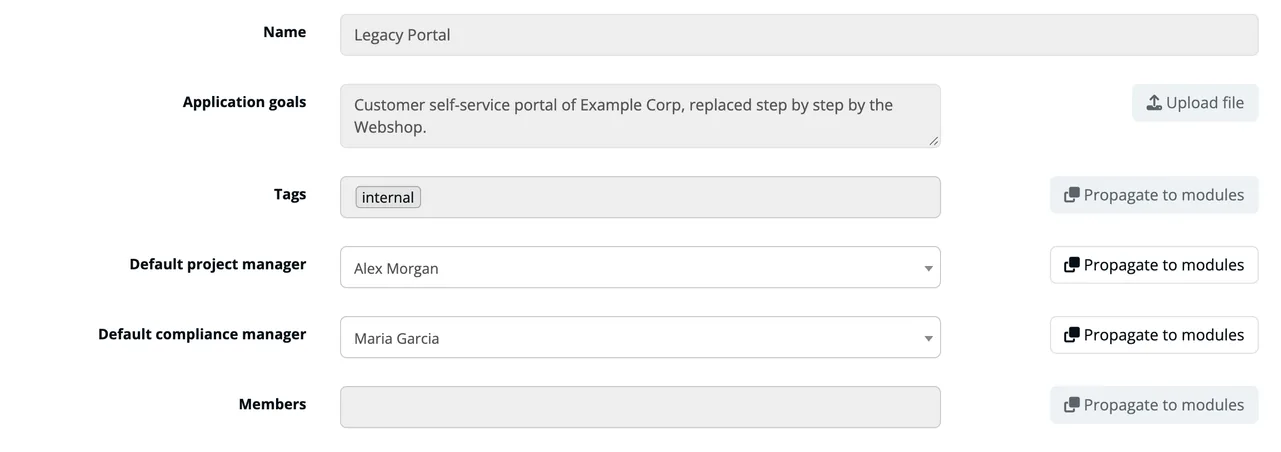
Context: your relationship to the project or module
Three roles see a different set of rights in the interface depending on their relationship to the project or module they open. When a context applies, its set replaces the role's base rights for that entity in the settings screens. The server does not check these contexts.
| Role | Context | Applies when |
|---|---|---|
| Manager | Default owner (extendIfDefault) |
You are the default project manager of the entity, the entity has no default project manager, or it has no related users at all. |
| Compliance manager | Default owner (extendIfDefault) |
You are the default compliance manager of the entity, the entity has no default compliance manager, or it has no related users at all. |
| Developer | Member (extendIfMember) |
You are listed in the members of the entity. |
| Developer | Non-member (extendIfNotMember) |
The entity has members and you are not one of them. |
The no default owner case keeps nothing locked in the interface: when no default manager is assigned, every Manager or Compliance manager gets the owner rights. Assign default managers in the project's and module's General settings to limit who sees the owner rights in the interface. This does not restrict what other Managers or Compliance managers can change on the server.
The Portfolio manager, Account admin, Company component manager and Company security manager have no context rights; their base rights always apply.
If you hold several roles, each role is evaluated separately and the results are added.