Tab: Documents
Note
Editing: Developer, Compliance manager, Company security manager or Account admin.
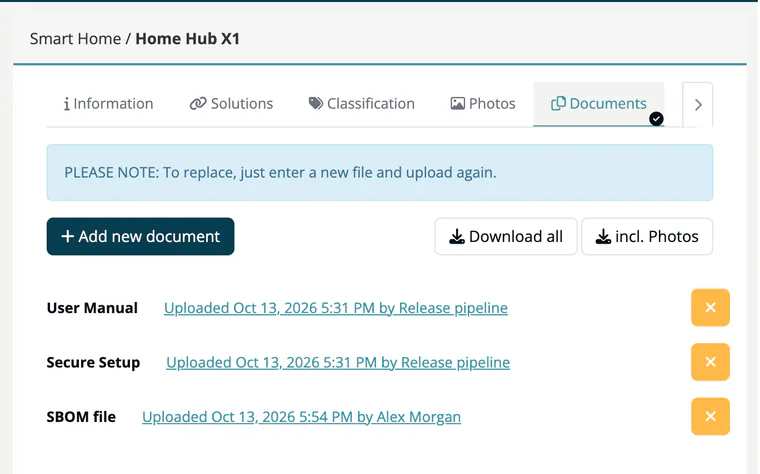
The Documents tab keeps the documents the CRA expects you to provide with a product. There is one slot per document type.
Document types
| Type | Used for |
|---|---|
| User Manual | Instructions for users. |
| Secure Setup | Guidance for installing and operating the product securely. |
| Product Description | Description of the product. |
| SBOM file | Software bill of materials; can be generated from the Solutions tab. |
| CE mark declaration | The declaration of conformity. |
Upload a document
- Click Add new document. The Upload product document dialog opens.
- Choose the Document type.
- Select the File and click Upload. Accepted formats: PDF, DOC, DOCX, XLS, XLSX, PPT, PPTX, TXT, RTF, ODT, ODP and ODS.
Tip
To replace a document, upload a new file of the same type ("PLEASE NOTE: To replace, just enter a new file and upload again."). The old file is deleted.
Uploaded documents are listed with their type, upload date and uploader; click the entry to download the file. Click the x button on a row to remove the document.
Download everything
Download all packs all documents into one ZIP archive. incl. Photos (shown when photos exist) adds the pictures from the Photos tab.
Where documents are stored
TrustSource CE stores product documents and photos on its own file storage: in the reference Docker Compose setup, the ts-files volume. Nothing is sent to an external storage service.
- Back up the
ts-filesvolume together with the database; a database backup alone does not contain these files. See Backups & Monitoring. - Files are served under
/files/products/<company id>/<random file name>. The download link does not require a login: anyone who has the exact link can fetch the file. The file name is a random identifier, so a link cannot be guessed, but treat shared links as confidential.
Related
- Products overview - all eight product tabs