CSAF Documents
Note
Required license feature: csaf
Who can do what:
- Create an advisory: manager, compliance_manager, company_security_manager, account_admin
- Edit, delete, mark as AMBER+STRICT and run checks: compliance_manager, company_security_manager, account_admin
- Publish an advisory: company_security_manager
- Manage feed keys: account_admin
The Outbound menu is shown to compliance_manager, manager and account_admin; a company_security_manager without one of these roles opens the CSAF list directly at /csaf.
CSAF (Common Security Advisory Framework) documents are structured security advisories that describe vulnerabilities in your products and the remediation steps you have taken. TrustSource checks them against the CSAF 2.0 standard, publishes them to your CSAF provider and can hand restricted advisories to selected recipients through access-protected feeds.
What you can do
- Create an advisory with the wizard (steps Type, Meta, Affected, Vulnerabilities, Remediations), start one from the findings you select in the Vulnerability report (Treatments → Create CSAF), or Import an existing CSAF file.
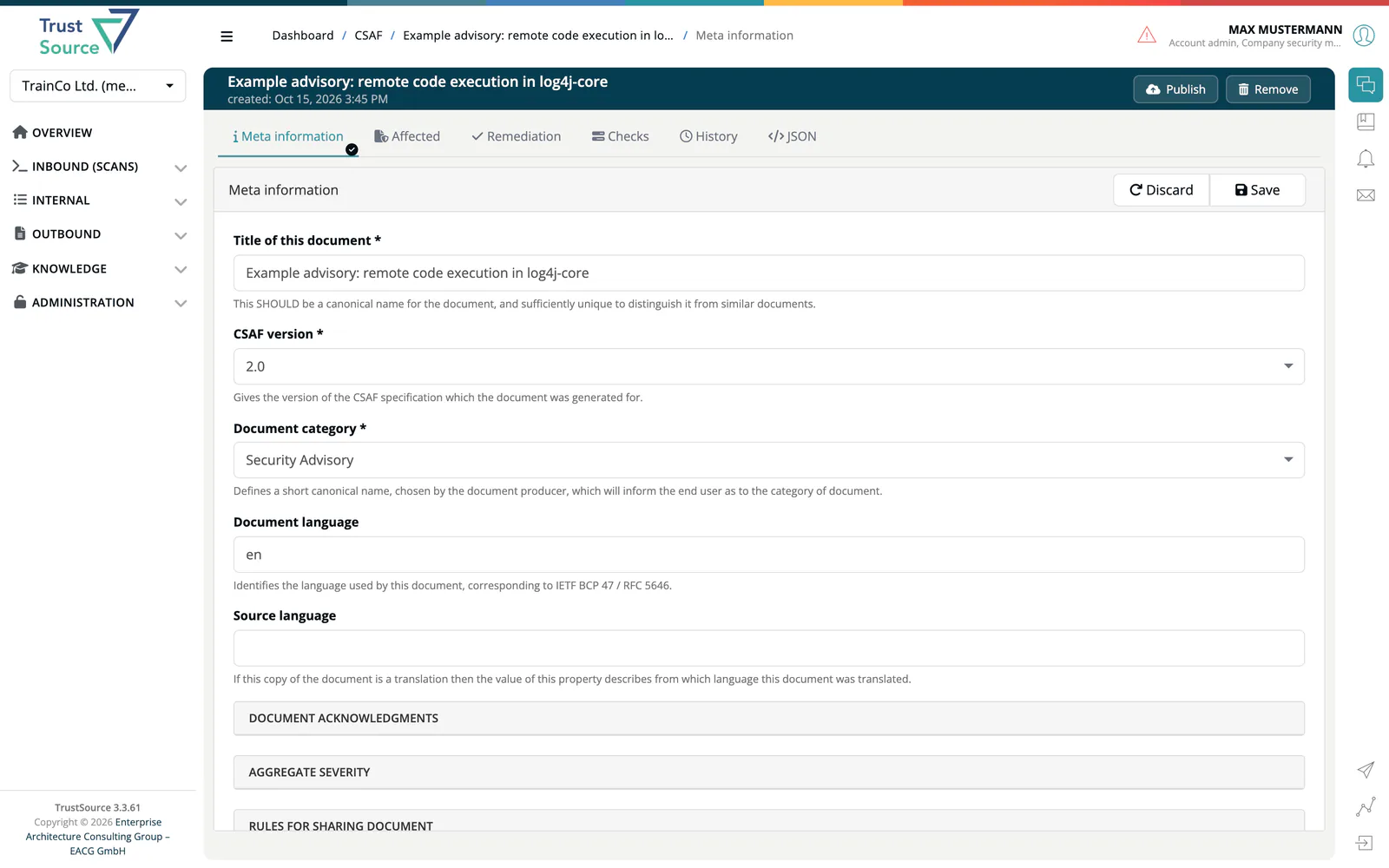
- Edit across the tabs Meta information, Affected, Remediation, Checks, History and JSON.
- Check an advisory against the CSAF 2.0 mandatory tests before you publish it.
- Publish an advisory to the provider directory that matches its TLP label, and keep every published version.
- Share restricted advisories with a recipient through a feed key, optionally limited to the products that recipient is entitled to (AMBER+STRICT).
The life of an advisory
An advisory moves through four steps:
- Draft. A new advisory has the status
draft. Drafts are internal. They are never served to recipients, except through a feed key that you created with Include drafts (see Internal preview). - Check. Open the Checks tab and press Run check now. See Checks.
- Publish. Press Publish in the advisory header or in the list row. The advisory becomes
finaland is uploaded to the provider. - Versions. Every publish keeps an exact copy. The History tab lists them under Published versions.
Note
A published advisory can no longer be removed. If a published advisory is wrong, publish a corrected version instead.
Checks
The Checks tab shows the result of the CSAF 2.0 mandatory tests for the advisory. The Check column in the CSAF list shows the same result at a glance.
| State | Meaning |
|---|---|
| Passed | All mandatory tests passed. |
| Failed | At least one mandatory test failed. The tab names each failed test and where in the document it failed. |
| Stale | The document changed after the last check. Run the check again. |
| Not run | No check has run yet. |
Optional tests are listed too, but they never block publishing. If the document does not match the CSAF 2.0 schema, the other tests are not run. Fix the schema errors first, or edit the document in the JSON tab.
Publishing is refused when a mandatory test fails or when the version number is already published. The message names the failed tests. Open the Checks tab for details.
Note
The schema validation is strict (CSAF 2.0, JSON Schema 2020-12). Documents or imports that were accepted by older releases can be rejected now. Documents over 5 MiB are refused.
Published versions and version numbers
- The next version number follows the highest number in the advisory's revision history.
- History → Published versions lists each published version. View JSON shows it, Download saves it.
- Recipients can request an earlier version from the feed with
?version=N, see Feed endpoints.
TLP: where an advisory is published
The TLP label of the document (Meta information tab, field Label of TLP) decides where the advisory is published. TLP is the Traffic Light Protocol, which classifies how widely information may be shared.
| TLP label | Published to |
|---|---|
WHITE |
The public provider directory. Anyone can read it. |
GREEN, AMBER, RED |
The provider directory of the same name. Your provider must serve these directories only with authentication. |
Rules:
- An advisory without a TLP label is treated as
WHITE. - A label that is not a CSAF 2.0 level is refused at publish time. It is never guessed.
- The canonical URL inside the document points to the same directory the file was uploaded to.
Warning
Check with your CSAF provider before you publish the first advisory with a label other than WHITE. The directories green, amber and red must exist and must require authentication. Otherwise a restricted advisory is publicly readable.
Sharing restricted advisories: feed keys
A restricted advisory is not meant for the public. You give each recipient a feed key. The recipient uses the key to list and read exactly the advisories the key allows.
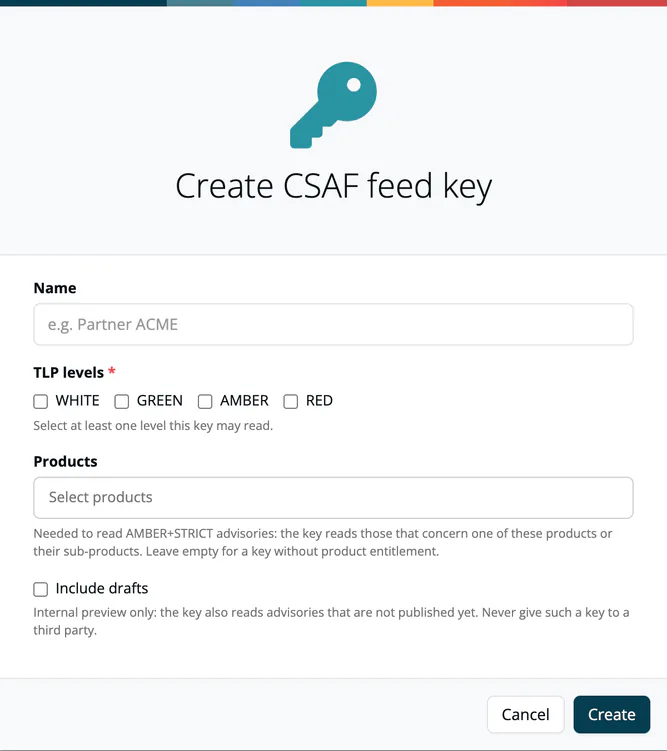
Create and manage keys under Administration → API keys (page Scanners & API keys): the card CSAF feed keys opens the page of the same name. The card is shown only with the csaf feature. Create key opens the dialog Create CSAF feed key; Create saves the key.
| Field | What it does |
|---|---|
| Name | Your label for the recipient, for example Partner ACME. |
| TLP levels | The levels this key may read. Select at least one. A level you did not select answers 404. |
| Products | Only with the Products feature. The products this key is entitled to. Needed for AMBER+STRICT advisories, see below. |
| Include drafts | Internal preview only. See Internal preview. |
Per key you can copy it, edit its Products, open its Access log, switch drafts on or off, Publish it to activate it or Unpublish it to switch it off. Delete is available for unpublished keys.
Access log
Every read through a key is recorded: which key read which advisory, and when. Open it with the Access log button of the key. Entries are kept for 365 days. The Requests column shows the number of reads.
What a recipient sees
- A key sees only published advisories, exactly as last published. Later edits stay internal until you publish again.
- An advisory that the key may not read answers
404, the same as a document that does not exist. A recipient cannot learn that a restricted advisory exists. - Without the
csaffeature the feed answers404for every key.
Feed endpoints
| Request | Returns |
|---|---|
GET /compliance/csaf/{key}/documents |
The advisories the key may read, newest first. Each item carries version. |
GET /compliance/csaf/{key}/documents/{id} |
One advisory. |
GET /compliance/csaf/{key}/documents/{id}?version=N |
An earlier published version. |
Internal preview with drafts
A key created with Include drafts also reads advisories that are not published yet. Use it for your own review tooling only.
Caution
Never give a key with Include drafts to a third party. It exposes unpublished advisories.
AMBER+STRICT: advisories restricted to a product
Some recipients may read an advisory only if it concerns a product they are entitled to. This is typical for critical infrastructure (KRITIS) customers. Mark such an advisory AMBER+STRICT.
An AMBER+STRICT advisory is served only to a feed key that is bound to a product the advisory concerns. Keys bound to a parent product also read advisories about its sub-products. Every other key gets 404, including keys that may read TLP AMBER.
Note
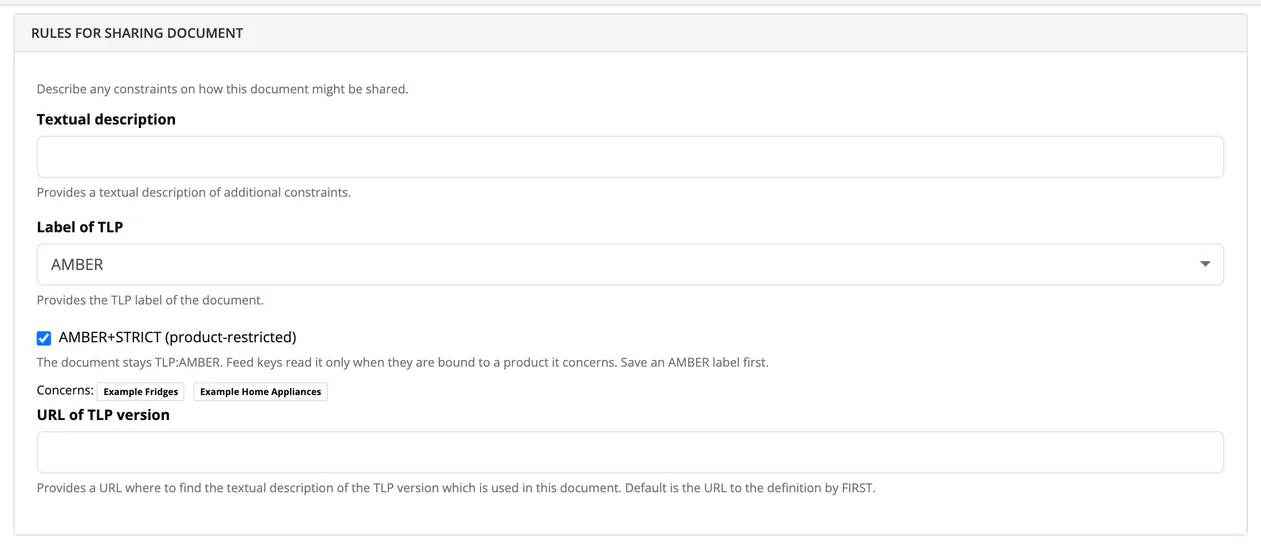
CSAF 2.0 cannot carry the label AMBER+STRICT inside the document. The document stays AMBER. TrustSource keeps the restriction as a marker on the advisory and enforces it in the feed.
Set it up
- Link the affected release to a product. In the product, open the Solutions tab and use Add solution. See Link with Release. The advisory's products come from the releases that contain the affected modules. Without this link, no key can read the advisory.
- Set the TLP label to
AMBERand save the advisory. Only anAMBERadvisory can be marked. - Mark it. On the Meta information tab, tick AMBER+STRICT (product-restricted). The advisory then shows which products it concerns. If it shows no product yet, go back to step 1.
- Bind the recipient's key to the product. Create a key (or use the Products button of an existing key) and select the products the recipient is entitled to.
- Publish the advisory.
What to expect
- The recipient receives the whole advisory, not a filtered copy. The advisory is not reduced to the part that concerns the recipient's product.
- A key without products reads no AMBER+STRICT advisory. A key without products still works for the TLP levels it was created with.
- Each published version keeps the products it concerned at the time. An older version is served by the products of that version.
- To withdraw the marker, untick AMBER+STRICT and publish again.
If something does not work
| Symptom | Cause and fix |
|---|---|
| The AMBER+STRICT option is missing. | The saved TLP label is not AMBER. Select AMBER, save, then tick the option. |
| The advisory shows no product yet. | No release containing an affected module is linked to a product. Link the release to a product. |
A recipient gets 404. |
The key has no matching TLP level, is not bound to a product the advisory concerns, or is unpublished. Check the key's TLP levels, Products and status. |
| Publishing is refused. | A mandatory test failed, or this version is already published. See the Checks tab. |
| A recipient sees older content. | Feeds serve the advisory as last published. Edits become visible after you publish again. |
Justifications in VEX documents
Findings that you mute in a module carry their reason into the advisory. The reasons False positive and Vulnerable code not in use are published as a CSAF justification flag. You can change the justification in the CVE is muted dialog. In the CSAF wizard, you can also set a justification for products marked Known not affected.
The published status follows the reason you select, not the text of your comment. A CVE muted in one module is no longer published as not affected for the other modules of the project. A fix that is about to be implemented is published as known affected.
Related
- Background: VEX in CSAF - VEX use cases
- Link with Release - connect releases to products
- Products - products referenced in CSAF advisories
- CSAF Trusted Provider - the capability behind publishing
- Vulnerability Lake - the CVE database