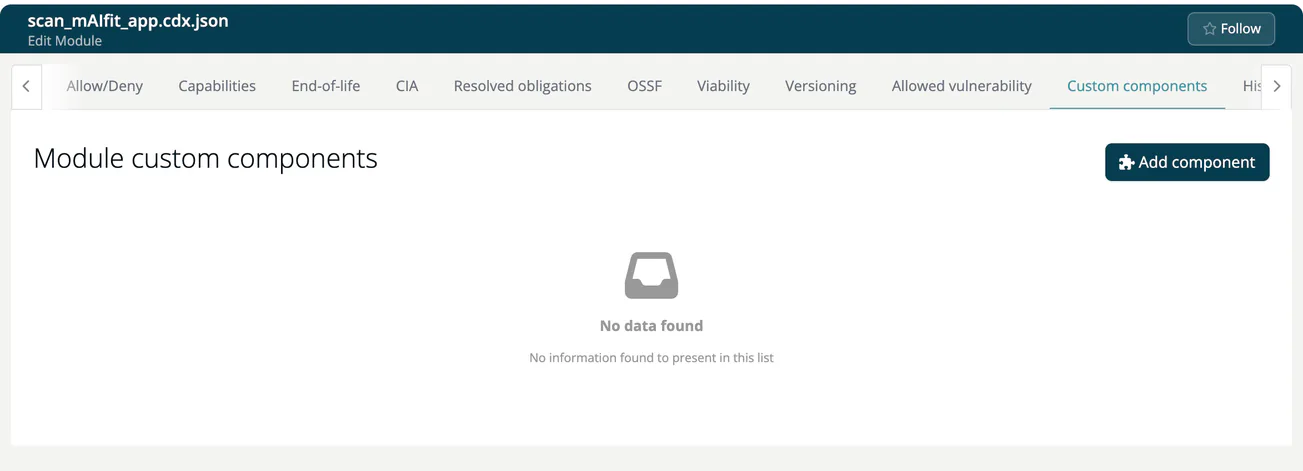
Custom components (Module)
Note
Required role: everyone who can open the module settings reads the list. Add component is for developers and for managers and compliance managers who are the module's default manager (or if none is set); Remove only for those default managers. Saving is also checked on the server, which accepts account admins, managers, compliance managers and developers for adding, and only account admins, managers and compliance managers for removing. See the Settings Permission Matrix.
Scanners only find what a package manager declares. Use custom components for everything else that ships in your module: a vendored library, a binary blob or a component delivered by a supplier. They are added to the module's component list at the next analysis. The tab is not shown for infrastructure modules.
Add a component
- Click Add component (upper right of the panel Module custom components).
- Search for the component and select it, then select its version. The dialog shows what you selected: name, package type and links to homepage and repository.
- Click Add component. A toast confirms Component successfully added!
If the same component with the same version is already in the module, you see Error: component with same version already exists in module.
Note
A manually added component does not appear in the component or legal views until you run a new analysis. The module is marked as requiring one. The views show an analysis result, not live data.
The list
| Column | Content |
|---|---|
| Name | Component name. |
| Version | The selected version. |
| License | License of that version. |
| Actions | Remove. |
Remove takes the component out of the module at once, without a confirmation, and logs it. A toast confirms Component … successfully removed!. Run an analysis to refresh the views.