Module Detail Tabs
Note
Required role: any role with access to the project can open a module. The header actions below are available to manager and compliance_manager; developers, portfolio managers and account admins see only Resolve via Notice file.
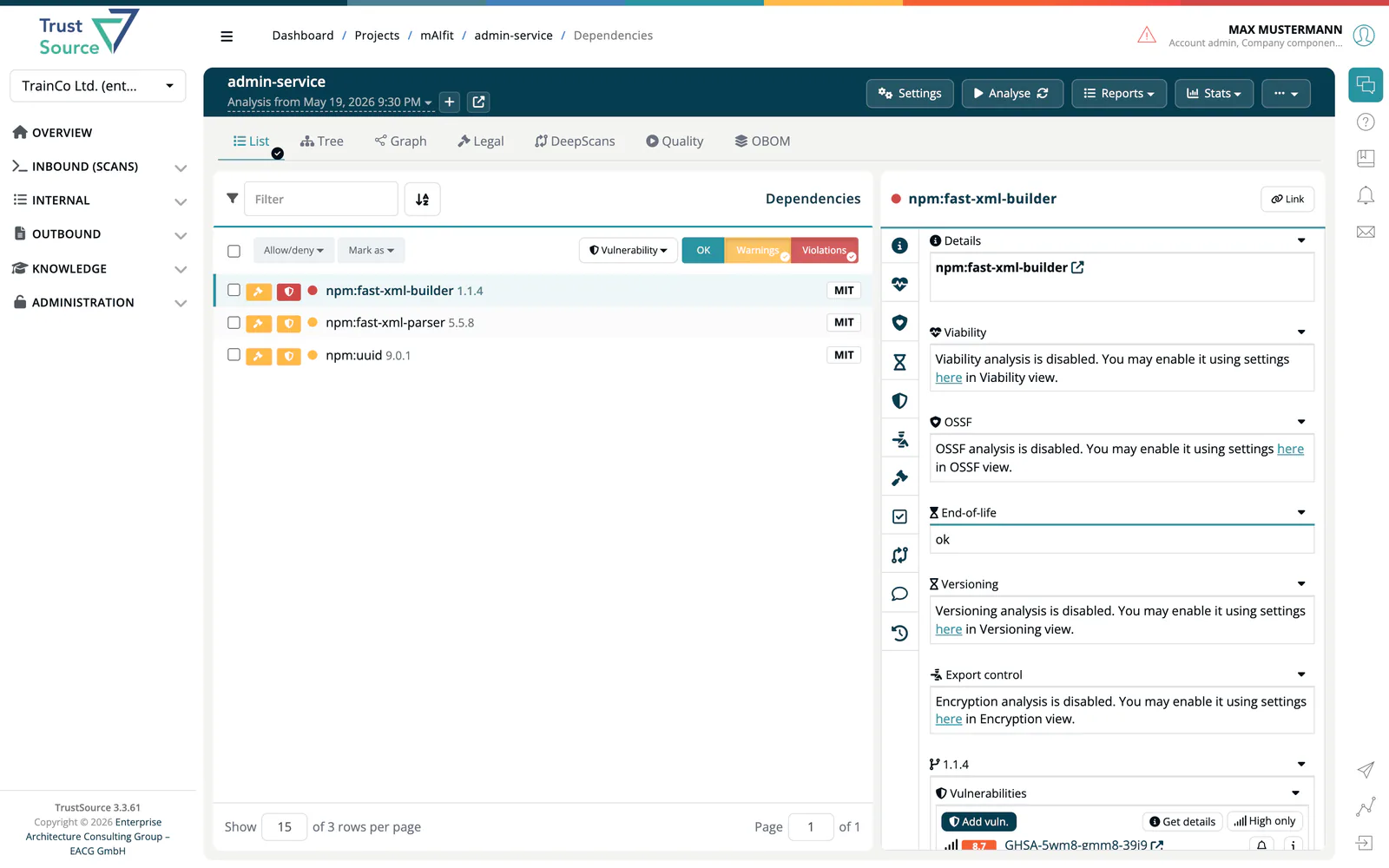
Open a module from the module list. The header shows the module name (with version, release name and architecture type), the traffic-light state, and the analysis selector. Below it, the tab bar switches the view. Infrastructure and COTS modules have no tab bar; see Infrastructure Modules.
If your company has used up its component allowance, a Limit reached: N over warning appears at the right of the tab bar and links to the company settings.
Tabs
| Tab | Shows | Available when |
|---|---|---|
| List | Direct and transitive dependencies | Always |
| Tree | The same dependencies as a hierarchy | Always |
| Graph | Interactive dependency graph | Always |
| Legal | Licenses with the components that use them | Always |
| DeepScans | File-level findings of repository deep scans | Always; filled once a deep scan ran |
| Quality | Results of SARIF uploads | License feature sarif |
| OBOM | The module's operational BOM, see OBOM tab | License feature obom |
List
Each row shows the component name, version and detected licenses (Multi-license if you must choose one), plus small status badges for Licenses, Vulnerabilities, Viability, OpenSSF Scorecard, Versioning and Export control, plus End-of-life when the component has an end-of-life warning or violation. Use the Filter box, the sort toggle and the status filters above the list; the dropdown next to the filters (Overall, Legal, Vulnerability, Viability, OpenSSF, Versioning, End of Life, Encryption, Multi-Legal) picks the status the filters apply to. Tick components to act on several at once: Allow/deny adds them to the allow list of the module, project or company or removes them, and Mark as marks them Unchanged or Loose coupled. Click a row to open the Component Details side panel; see Component details.
Tree and Graph
Tree expands and collapses the parent-child structure. Graph draws it as a network you can drag and zoom.
Legal
Licenses with their status (OK, warning, violation, private license) and, when expanded, the components using them. Click a license name for the license details. manager and compliance_manager can right-click a license or a component and choose Always allow in Module / Project / Company or Always deny in Module / Project / Company (see Allow/Deny); the Project entries are disabled for a module without a project. On problem entries, a link creates an issue if Jira or TFS is connected, and Copy details copies the problem description to the clipboard.
Header actions
For manager and compliance_manager:
| Action | What it does |
|---|---|
| Settings | Opens Module Settings. Highlighted while legal or architecture settings are incomplete. |
| Env. settings | Sets the environmental vulnerability vector for this module. |
| Add component | Adds a component manually. |
| Analyse | Re-analyzes the module against current policies and vulnerability data. Reads Analysis in progress while it runs. |
| Reports | Opens Vulnerability, Risks, Obligations, OpenSSF or Credits for this module. |
| Resolve via Notice file | Lists the obligations a notice file resolves and creates it (Create Notice file). Becomes View Notice file once one exists. |
| Initiate approval | Starts an approval. Not shown for modules outside a project. |
| Follow | Follow the module for notifications. |
| Stats | Dropdown with an overview of the module: status bars for Components, Vulnerabilities, Legal and Versioning. |
| Take tour | Starts the guided tour. |
Depending on the window width, some of these move into the ... menu; at 1440 pixels, for example, Env. settings, Add component, Resolve via Notice file, Initiate approval, Follow and Take tour are there.
Choosing an analysis
Under the title, Analysis from
- Magnifier icon: filter the analyses by Branch or Tag. It appears only if the scans carried branches or tags. The active filter shows as a badge; click it to remove the filter.
- + icon: Attach a name to the selected analysis (
manager,compliance_manager). Enter a name of up to 30 characters and click Save. The name appears in the dropdown and as the release label next to the module name. - External-link icon: View scan details in a new tab.
Note
Name, filter and scan details are not shown for infrastructure and COTS modules.