Allow/Deny (Project)
Note
Required role: everyone who can open the project settings reads the lists. Compliance manager, and managers who are the project's default project manager or default compliance manager (or any manager while none is set), can change them. Approve is for Compliance manager. See the Settings Permission Matrix.
The Allow/Deny tab lets you overrule the automatic evaluation for all modules of this project: a license your legal team has cleared, or a component you never want to ship.
Enforce allow list
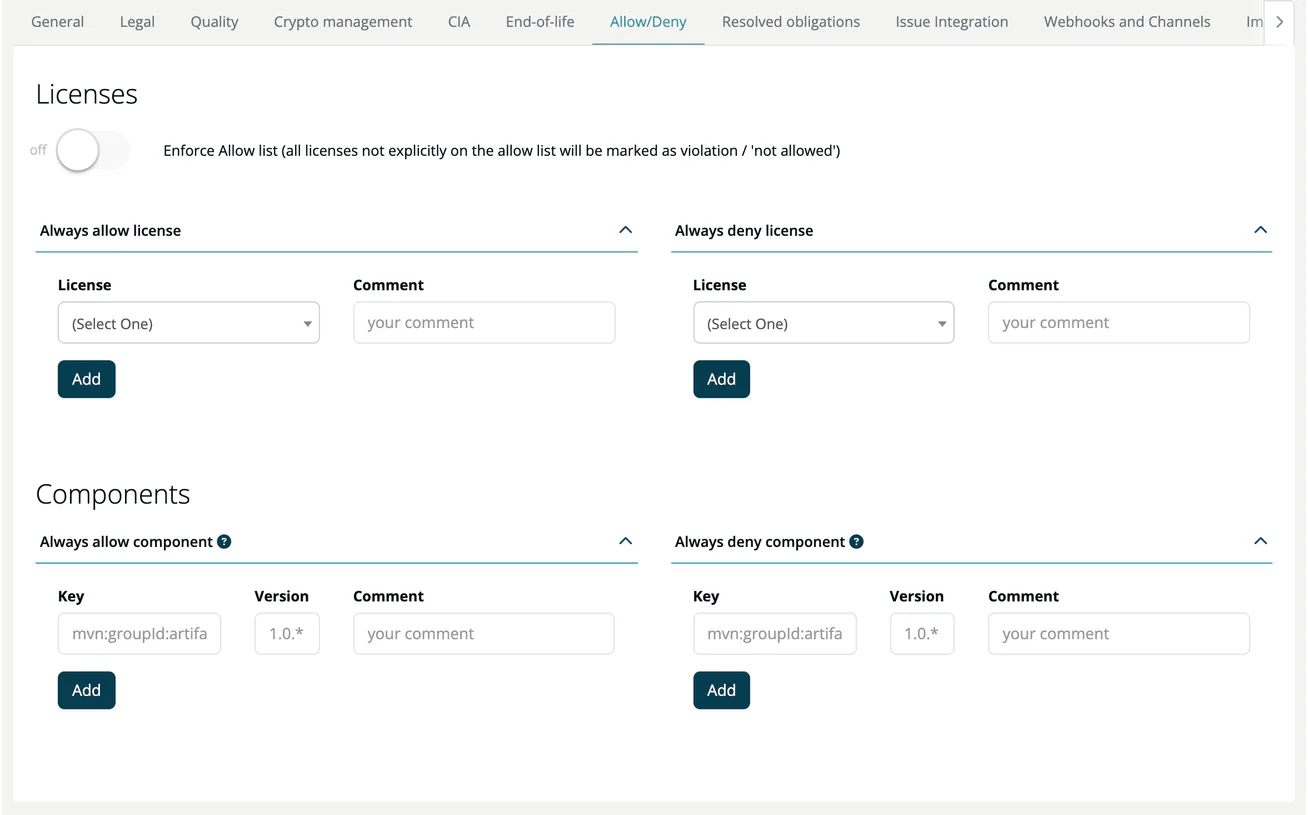
The switch Enforce Allow list (all licenses not explicitly on the allow list will be marked as violation / 'not allowed') makes the allow list mandatory: every license that is not on an allow list becomes a violation. Turning it on or off asks Are you sure you want to update Enforce allow settings?; after Yes, update settings! all modules of the project are re-analysed.
Licenses
Two panels, Always allow license and Always deny license. Select the license, write a comment and click Add. A license cannot be on both lists.
Components
Two panels, Always allow component and Always deny component, each with Key (for example mvn:com.acme.billing:invoice-core), Version (for example 1.0.*) and Comment. The question-mark icon next to the panel title explains the wildcard rules. Details are described under Allow/Deny (Module).
Click a row to load it into the form: Add becomes Update, and Cancel and Remove appear. Rows labelled in Company come from the company lists and link to them.
Approval of entries
When the allow list is enforced, entries that are not added by a compliance manager are saved as Not approved. A compliance manager selects the row and clicks Approve, or Reject to delete it.
Note
Whether a component was modified and whether it is loosely coupled is not set on this tab. Managers set it per component in the Settings section of the component side panel.
Related
- Allow/Deny (Module)
- Open Source Policy and Settings: company-wide allow and deny lists