User Management
Note
Required role: Account admin
Invite colleagues, set their roles and remove users of your company in TrustSource CE. Open Administration → User Management.
Warning
Invitations are sent by email. They only reach your colleagues when the installation has a working SMTP server (MAIL_URL, MAIL_SENDER). The reference setup delivers all mail to the local Mailpit inbox instead. See External services. The links in the mail are built from ROOT_URL, so set it to the address your users open.
The user list
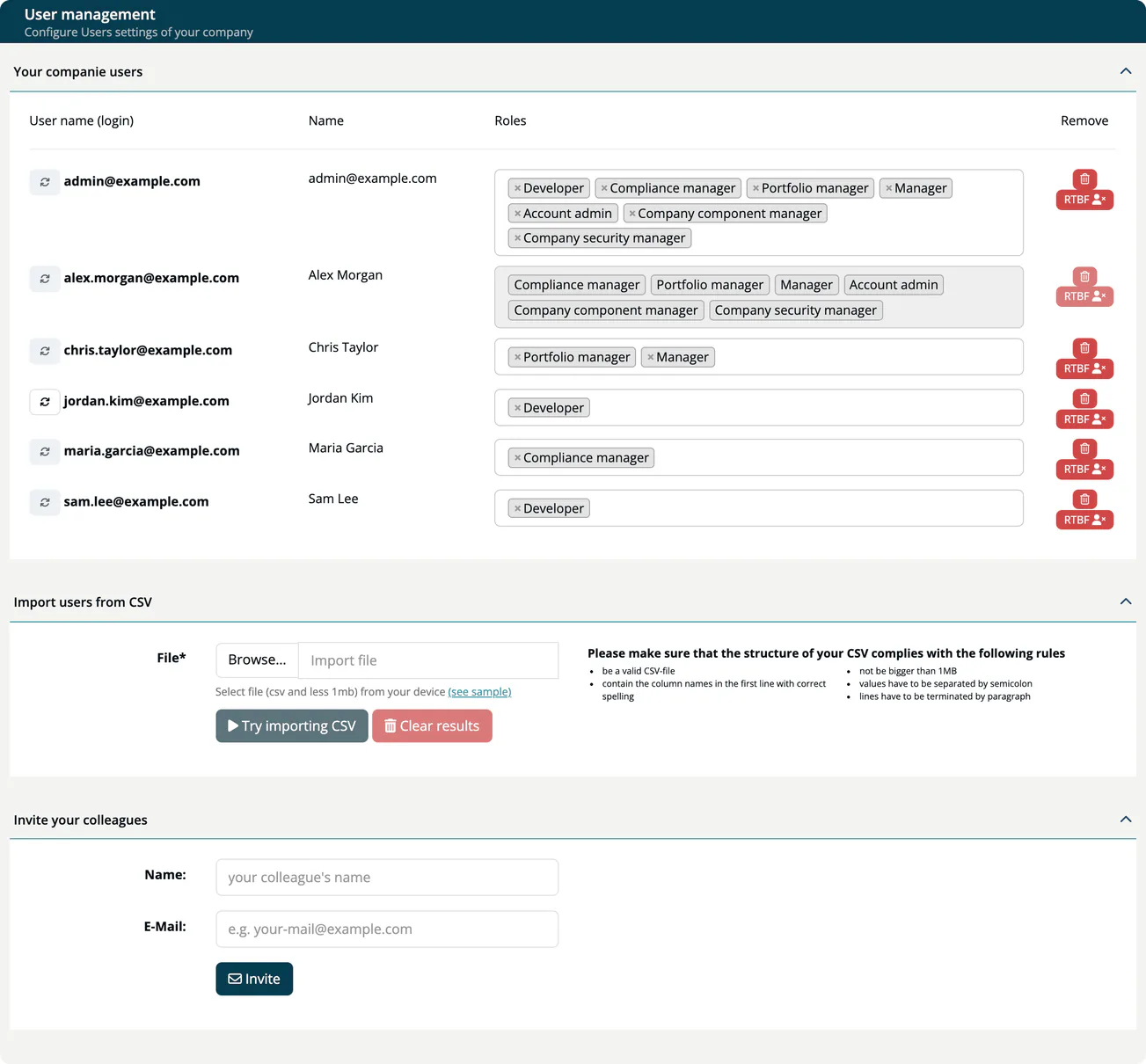
The panel Your companie users lists every member with User name (login), Name, Roles and Remove.
- Change roles: select a role in the Roles drop-down of a user to add it, or select the × on a role to remove it. The change is saved immediately. A user must keep at least one role; to take someone out of the company, remove the user instead. You cannot change your own roles.
- Resend invitation: the refresh button next to the login sends the invitation email again. It is only enabled while the user has not verified the address yet, and never for yourself.
- Remove user: the trash button removes the user from your company at once, without a confirmation. The account itself stays on the installation.
- RTBF: removes the user under the right to be forgotten. A dialog asks for a replacement text for the user's name in records of your company, such as audit log entries, approvals, tags, notice files and manual vulnerabilities. Leave it empty to use
RTBF_USED.
Warning
Removing a user or reducing their roles does not affect their personal access keys. Each key keeps the roles the user had when they created it and keeps working until an Account admin unpublishes and deletes it under Administration → API keys. See Offboard a user.
A name shown in red with a warning icon means the user's correspondence email differs from the login address.
The roles you can assign are the seven roles of TrustSource CE. See Roles overview.
Warning
Ticking every role for one user gives that user all privileges. The app warns you ("god-like privileges") and the user then sees "ATTENTION! You are using all roles. This is not intended for production use." in the header. The initial admin created at installation holds all roles; give day-to-day users only the roles they need.
Invite a colleague
Under Invite your colleagues enter the Name and E-Mail and select Invite.
- The new user receives an enrolment email, sets a password and starts with the role Developer. Change the roles in the list afterwards.
- If the address already belongs to a member of your company, the invitation is refused.
- If the address belongs to a user of another company on the same installation, that user gets the Developer role in your company as well and can switch between companies in the sidebar header.
Import users from CSV
Use Import users from CSV to invite, change or remove many users at once.
- Prepare a semicolon-separated CSV file of up to 1 MB. The first line holds the column names
matchID;Name;Email;Company;Roles. Select (see sample) for an example file. - Select Browse... and choose the file. The panel shows Expected results per line: Invited, Updated, Removed, Not found or Error. Nothing is changed yet.
- Select Import CSV to run the import. Clear results resets the panel.
| Situation | Result |
|---|---|
| New email address with roles | The user is invited with these roles. Separate several roles with a space, for example manager developer. |
| Existing member with roles | The member's roles are replaced. |
| Existing member with an empty Roles cell | All roles of the member in your company are removed. |
| New email address with an empty Roles cell | Not found, nothing happens. |
| Company differs from your company name | Error "Wrong company name". Spaces are ignored in the comparison. |
| Name or Email missing | Error, for example "Please enter Email". |
Use the role keys in the Roles column: developer, compliance_manager, portfolio_manager, manager, account_admin, company_component_manager, company_security_manager. A single unknown role name falls back to developer; in a list of several names, unknown ones are ignored.
Offboard a user
When someone leaves the company or changes jobs:
- Open Administration → API keys → API keys. Find the user's personal access keys: they are ticked in the PAK column and carry the user's name in Name.
- Unpublish each of these keys, then Delete it.
- Replace any key or secret the person knew: company API keys (for example one stored in a pipeline they maintained: create a new key, update the pipeline, then unpublish and delete the old key), release keys, CSAF feed keys, and webhook secret headers or URLs.
- Back in Administration → User Management, remove the user, or reduce their roles if they stay in the company.
Also do steps 1 and 2 when you only reduce a user's roles: their existing personal access keys keep the old roles.
Related
- Roles & Permissions
- Login History: who signed in and who did not
- First login: what an invited user sees