SW Quality Scans (SARIF)
Note
Required role: to import in the app: Developer, Manager, Compliance manager, Company security manager or Company component manager. Over the API, a key with the Portfolio manager scope may import as well.
TrustSource CE reads results from static analysis tools in the SARIF format (Static Analysis Results Interchange Format, version 2.1.0). You see code quality and security findings next to the dependency and license data of the same module, and can turn findings into issues and risks.
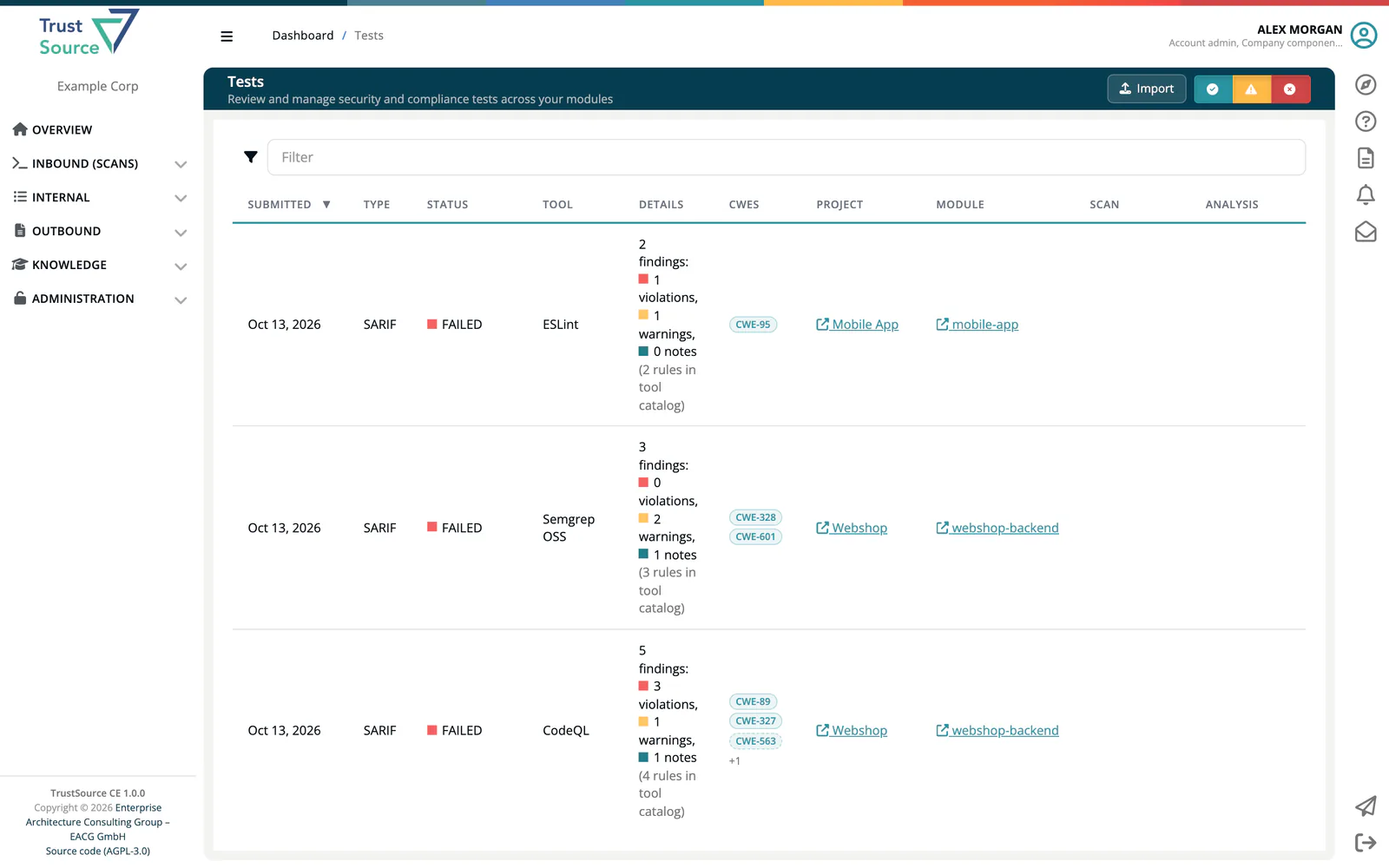
Open Inbound (Scans) → SW Quality Scans. The page is titled Tests and lists every imported SARIF document of your company. The same list, filtered to one module, is on the module's Quality tab.
Import a SARIF file
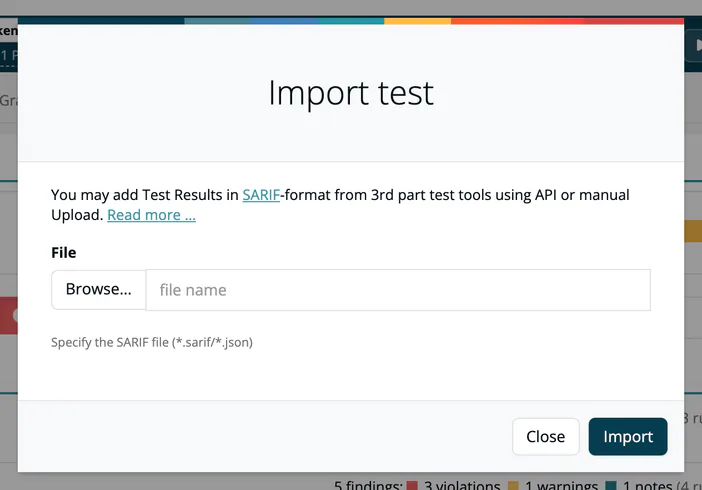
- Open the module's Quality tab and click Import.
- In the dialog Import test, click Browse and select a
.sarifor.jsonfile. - Click Import.
The file is checked against the SARIF schema before it is stored; an invalid file is refused with the validation messages. A successful import shows File successfully uploaded.
Warning
Import from the module's Quality tab to attach the results to that module. A file imported with Import on the Tests page itself is stored without a module: it shows in the list, but it is not part of any module and creates no risks. To import for a module without opening the app, use the API with a project and module name.
Import with the API
Project and module are passed as query parameters; the file as a multipart upload:
curl -X POST "https://<your-host>/api/v2/core/tests/sarif/json?projectName=payment-platform&moduleName=billing-service" \
  -H "x-api-key: YOUR_API_KEY" \
  -F "file=@results.sarif"
The JSON variant POST /api/v2/core/tests/sarif takes the document as the request body, up to 5 MB. A file upload above the upload limit (50 MB by default, TS_UPLOAD_MAX_MB) is refused with 413. Instead of names you can pass moduleId, scanId or analysisId. See Tests (SARIF) API.
The response lists the ids of the stored test runs and the moduleId. If no module could be resolved, moduleId holds a message that the test is not attached to a module.
Warning
Use the same module name on every upload path.
A dependency scan, an SBOM import and a SARIF upload that carry the same module name land on the same module, whichever arrives first. TrustSource CE matches the name character for character within the project: if the SARIF upload uses a different spelling than your scan (say billing-service instead of @my-org/billing-service), you get two modules, one with dependency data and one with test findings, and the upload response does not warn you.
Duplicate modules are not merged automatically; merge or remove them by hand. To be safe, pass the module's moduleId instead of a name. moduleName and projectName work on all upload paths; module and project are accepted as aliases.
Reading the stored documents is possible too: GET /api/v2/core/tests/sarif lists them (newest first, 100 per page) and GET /api/v2/core/tests/sarif/{id} returns one with its run.
The Tests list
| Column | Meaning |
|---|---|
| Submitted | Upload date. |
| Type | Analysis type. |
| Status | Passed, Failed or Unfinished; see below. |
| Tool | The tool that produced the run, with its logo for known tools. |
| Details | The findings and their severity; see below. |
| CWEs | The weaknesses the findings carry. See SARIF Weaknesses and Risks. |
| Project, Module | Where the results are attached. Click to open them. |
| Scan, Analysis | Links to the dependency scan and analysis of the same module, if there are any. |
Click a row to open the test. Use the buttons Passed, Unfinished and Failed/Findings to show or hide each status, and the filter box to search.
How findings are counted
Only results that the tool reports as failures are counted. Results marked passed, informational, not applicable or similar are listed with the findings but shown in grey and not counted.
| Level reported by the tool | Counted as |
|---|---|
error |
Violation |
warning |
Warning |
note |
Note |
| No level stated | Warning (the SARIF default for an unstated severity) |
The Details column reads, for example, 14 findings: 2 violations, 9 warnings, 3 notes, followed by the number of rules in the tool catalog. The catalog figure is the number of rules the tool declares, not the number it applied; SARIF does not report that.
Passed, Failed, Unfinished
| Status | When |
|---|---|
| Passed | The run completed and reported no findings. |
| Failed | The tool reported an unsuccessful execution, or the run has findings. |
| Unfinished | The document holds no run to judge. |
A module's Quality bar shows one segment per test run, coloured by the worst finding in that run.
The test page
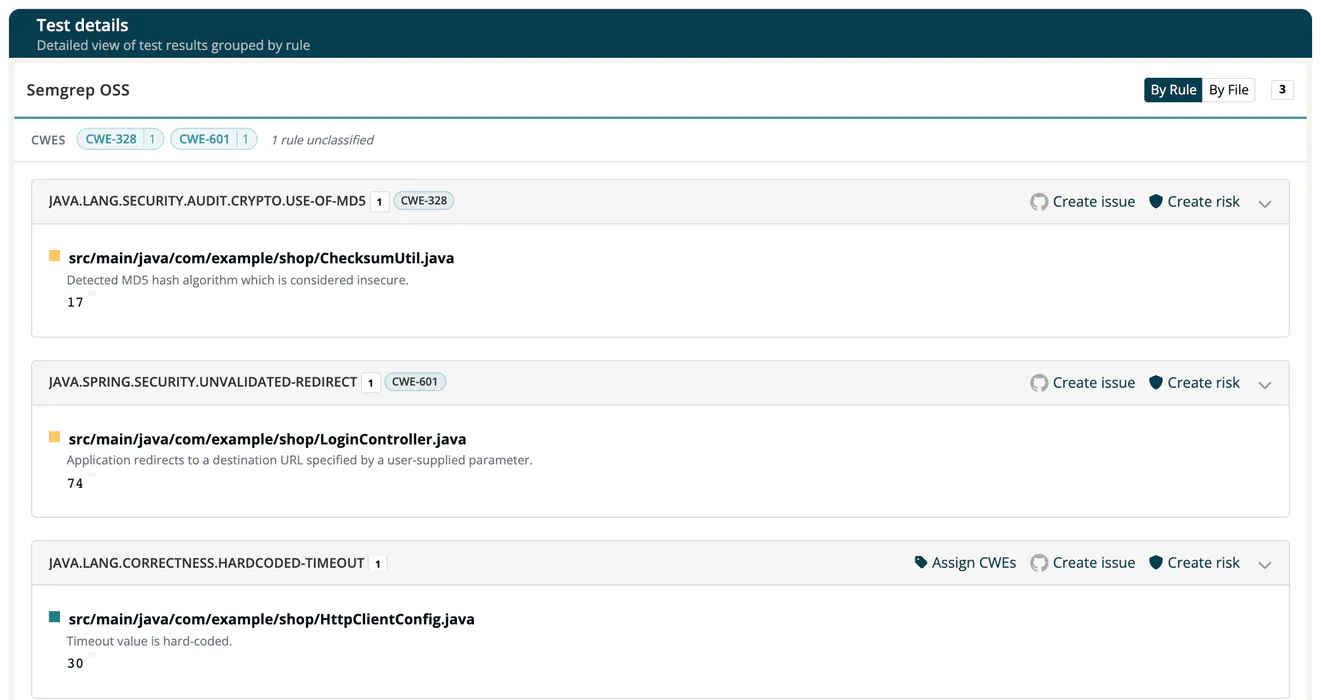
The page Test details shows the run's findings, grouped by rule:
- By Rule or By File switches the grouping. Each group header shows the rule, the number of findings, the CWEs and a link to the rule description when the tool provides one.
- A finding lists the file, line, message and code snippet. Findings without a location say No file location reported.
- Per rule group: Create issue opens the dialog Create new GitHub issue (needs the GitHub integration, see Integrations), and Create risk adds a single risk to the register (Compliance manager or Manager).
Required tests
Under Quality in the company, project or module settings you can list the tools whose results must exist before a release is requested. See Project settings: Quality.
Related
- SARIF Weaknesses and Risks: CWEs, manual assignments and automatic risks
- Import Scans: dependency data from SBOM files
- CI/CD Scan: automate all inbound data
- Risks: the risk register