Licenses
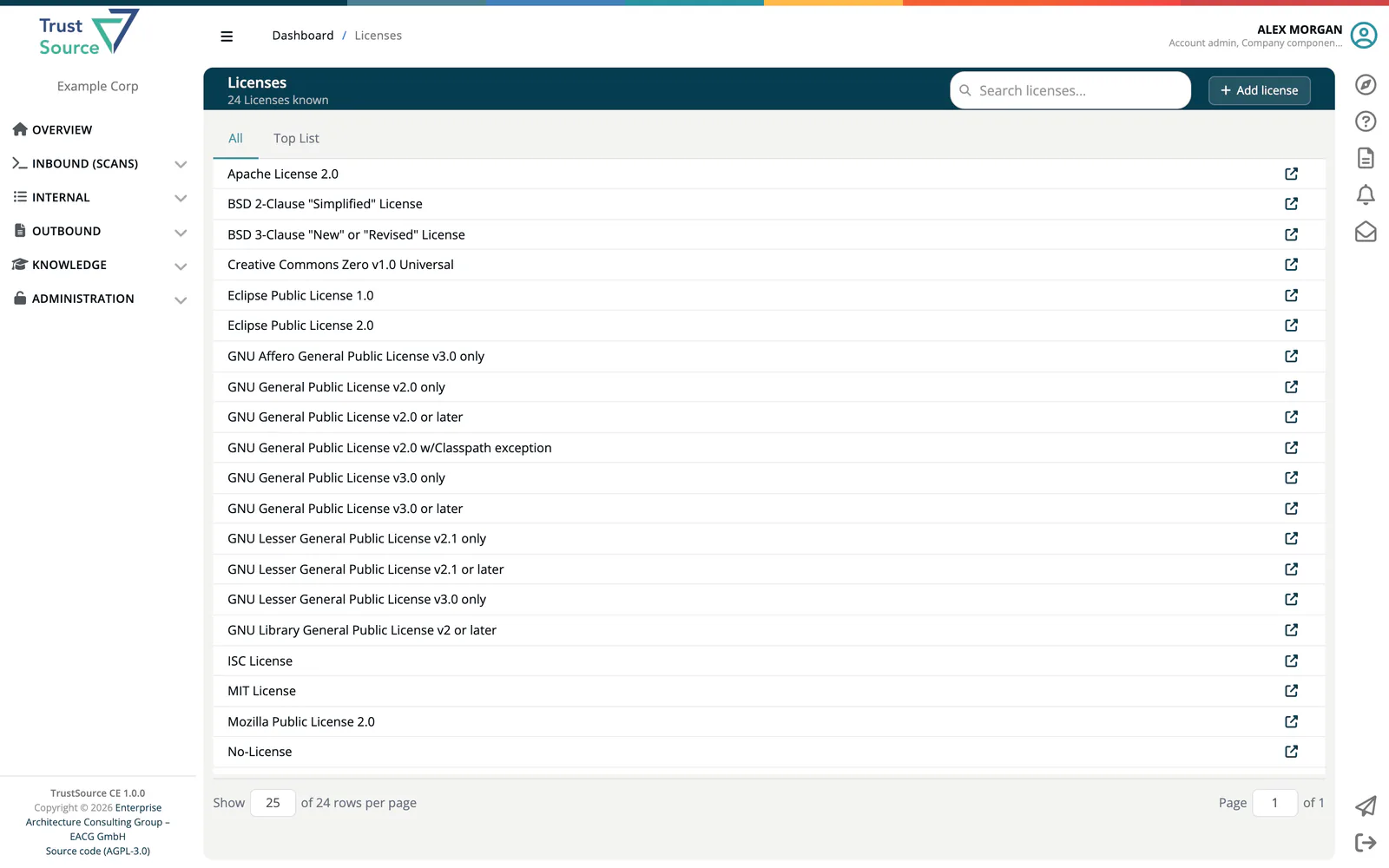
The license catalog lists every license TrustSource CE knows, with its text where one is stored. Use it to read what a license says, or to find the identifier to use when you assign a license by hand. Open it from Knowledge → Licenses.
What the catalog contains
The catalog holds metadata only: key, name, URL, aliases, a default copyright line and the license text. It carries no legal assessment of the licenses. Whether a license fits a project, and which obligations apply, is evaluated during analysis by the legal check service; see External Services.
On its first start, TrustSource CE fills the catalog with the popular licenses and their texts, and with the three special identifiers NO-LICENSE (no explicit license), PUBLIC-DOMAIN and UNKNOWN (license could not be determined). Use the special identifiers when you assign a license by hand to a component the scan could not match. Later starts only add what is missing; entries you edited are not overwritten.
Find a license
The header shows how many licenses are known (N Licenses known). Type into Search licenses... to filter by name; matches are highlighted. Two tabs organise the list:
- All lists every license alphabetically, with paging.
- Top List lists the licenses most used by the components in this installation's Component Lake, with their share in percent.
Each row shows the license name and a link to the license homepage. Select a row to open it.
License details
The detail page is titled with the license name and its identifier in brackets, for example MIT License [MIT]. It shows the License text with the creation and update dates. Search in license text... highlights a phrase in the text.
If the catalog holds no text for the license, the page reads "The text of this license is not stored in TrustSource CE." and links to the license URL when one is known.
Edit the catalog
Note
Required role: Company component manager.
Company component managers see two extra buttons:
- Add license on the list opens a dialog with License key (the SPDX identifier where one exists, for example
MITorApache-2.0; it cannot be changed later), Name, URL and License text. - Edit on a license opens Edit license with these fields:
| Field | Meaning |
|---|---|
| License key | Read-only. |
| Name | Display name. |
| URL | Link to the official text. |
| Aliases | One alias per line. License matching also recognises a license by these names. |
| Copyright | Used in Notice and SBOM files when a component carries no copyright of its own. |
| License text | The full text. |
Click Save. Back returns to the license page.
Warning
The license catalog is shared by all companies of the installation. A change affects license matching, Notice files and SBOMs of every company. When self sign-up is enabled (REGISTRATION_ENABLED=true), every user who signs up gets all roles in their new company, including Company component manager, and can therefore edit the shared catalog. Keep registration off on installations that serve several organisations, or review catalog changes regularly. See Environment Variables.
Company-specific licenses that should not go into the shared catalog belong under Administration → Settings → Private licenses; see Settings.
Related
- Open Source Policy - your company's policy document
- Manual License Resolution - assigning a license by hand
- Legal Reference Data