Create & Import Products
Note
Required license feature: products
Creating and importing needs only the license. Editing an existing product needs the developer, compliance_manager, company_security_manager or account_admin role.
Use Internal → Products to build the structure of what you ship: a tree of classes, families, variants and versions. You can add products one by one or import a whole structure from a JSON file.
Add a product
- Open Internal → Products and click Add.
- Optionally pick a Parent to place the product below an existing one. If you left a product selected in the tree, it is pre-selected.
- Enter the Identifier (required, for example
FR-100) and choose the Type: Class, Family, Variant, Version or Position. - Enter the Name (required) and, if you like, the Purpose.
- Click Add.
The identifier must be unique within your company. It also serves as the product's key: children refer to their parent by this identifier.
Tip
Tick Draft to try things out. Draft products are marked with a Draft label, and a Remove drafts button appears below the tree to delete all of them at once. Removing drafts is available to the manager, compliance_manager, company_security_manager and account_admin roles.
New products inherit the PSIRT contact stored in your company settings; see Contacts.
The product tree
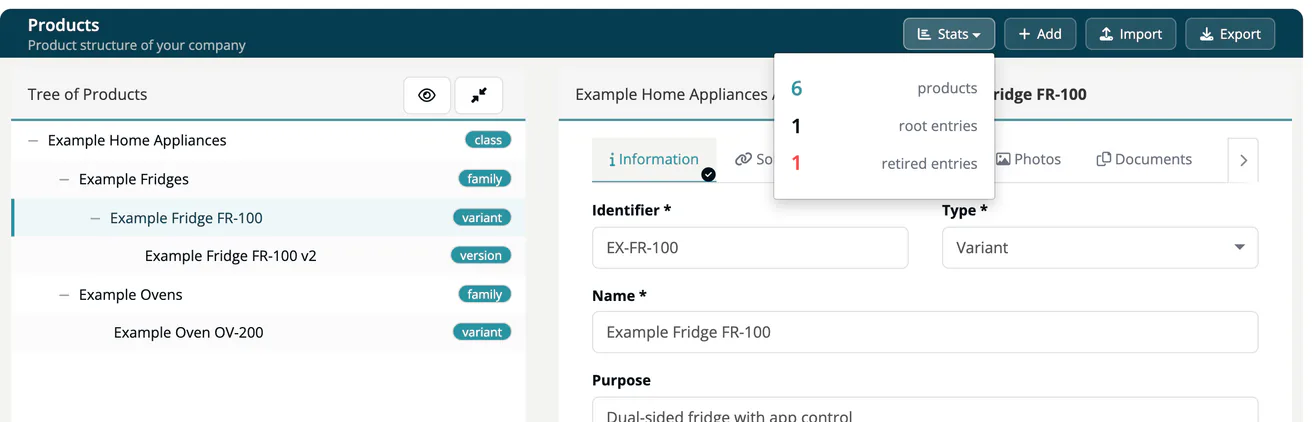
The left panel shows Tree of Products. Click a product to open its tabs on the right.
- Expand all / Collapse all opens or closes every branch.
- Show all also lists retired products; Hide retired returns to the default view.
- Stats shows the number of products, root entries and retired entries.
On screens narrower than 1500 pixels, the tree buttons show only their icons: the eye for Show all and Hide retired, the arrows for Expand all and Collapse all.
Import products
- Click Import in the page header.
- Optionally tick Draft to mark every imported product as a draft.
- Optionally choose a Parent. Imported products that have no parent in the file are placed below it; otherwise they become root entries.
- Select the File (
.json) and click Import.
Click the JSON link in the dialog to open a sample file.
File format
{
  "format": "TrustSourceProducts",
  "version": 1,
  "products": [
    {"type": "class", "identifier": "FR", "name": "Fridges", "description": "Household cooling"},
    {"type": "family", "identifier": "FR-100", "name": "Dual-sided"}
  ],
  "relations": [
    {"identifier": "FR", "contains": ["FR-100"]}
  ]
}
versionmust be1.- Each product needs
identifier,nameandtype(for exampleclassorfamily);descriptionandproperties(a list of{"name": ..., "value": ...}pairs) are optional. relationsdescribe the tree: the product inidentifiercontains the products listed incontains. A product listed in several relations keeps the first one. The order of products in the file does not matter.- A relation may point to a product that already exists in your company; it must exist, or the import fails.
- A file may hold up to 5,000 products and 5,000 relations, and you can start up to five imports per minute.
All or nothing
The import checks the whole file before it creates anything. If a single row is invalid, nothing is imported, and the error names the problem, for example:
- an identifier listed twice in the file, or already used by a product in your company,
- a product without identifier, name or type,
- a relation to an unknown parent, or relations that form a cycle,
- a row that violates the product schema (the message names the row).
Fix the file and import it again. A successful import shows "Products added".
Caution
A file that is valid JSON but does not carry "version": 1 is accepted without creating any product. If nothing appears after an import, check the version field.
Export products
Click Export to download products-export.json. It contains all active (not retired) products with type, identifier, name and description, and their relations, in the format above. Use it for backups or to move a structure to another company; properties, classification, documents and other tab data are not part of the export.
You can create and import products through the Products API as well.
Related
- Products overview - the eight product tabs
- Link with Release - connecting releases to products