Requesting an Approval
Note
Required role: manager or compliance_manager. The entry points below are shown to these two roles; other roles get a 403 when they try to start a real request. A dry run (a draft) is accepted from every member of the company.
You request an approval for a project and choose which of its modules, in which analysis version, go into it. A five-step wizard guides you.
Start the wizard
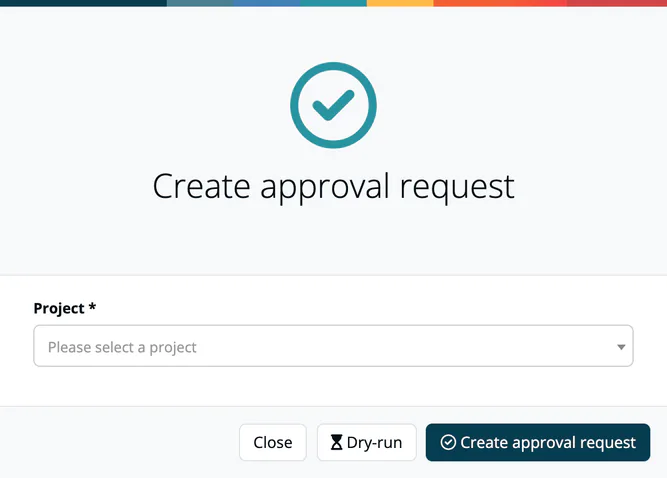
- From the approvals list: click Create, choose the Project and click Create approval request, or Dry-run to try it out. The list offers every project you can see: projects without members, and projects where you are a member or default manager (portfolio managers: all projects).
- From a project: click Start approval on the project's Releases tile or on the project's releases page.
- From a module: click Initiate approval in the module header. The wizard opens with that module preselected.
The five steps
| Step | What you do |
|---|---|
| 1 Settings | Under Prepare Approval, enter the Approval Name (required), an optional Semantic version (only the version of the approval, not of your product), a Packageurl (a valid PURL, used by the public VEX lookup) and an Approve description for the compliance manager. Tick Dry run to see the results without sending the request to the compliance managers. |
| 2 Pick modules | All modules of the project are ticked at first; untick those that do not belong to the release. The table shows each module's state, name, components, legal, security and quality figures. |
| 3 Select analysis | Choose the analysis (scan version) of each module. You can search by branch or tag. |
| 4 Confirm statuses | Check state, analysis and the figures once more, then click Next to create the request. |
| 5 Finalization | The request is created at once and the documents are generated in the background. |
Only modules of the same project that you can see can be selected, each with one of its own analyses.
Finalization
The last step, Finalizing your approval request, shows one row per document, in this order: Compliance Report, SoUP, Notice and SBOM. Each row has its own progress bar and, as soon as the document is ready, a link to open it. SoUP shows Not applicable when SoUP reports are not part of your plan. The SBOM is built from the scan pinned in the approval.
- Done: Great! You made it! A normal request has been forwarded to the compliance managers of your organisation. Compliance managers and followers of the project who have approval events enabled in their notification settings are notified. A dry run is not sent to anyone: it is assigned to you and shows as Draft under Internal → Approvals, where compliance managers can see it too.
- Failed: Report generation did not finish, with the details. The approval request itself still exists; open the reports that were generated or jump to the Compliance Report, and contact support if this keeps happening.
Use Jump to Compliance Report to open the approval, or Return to project.
What the approval contains
When the request is created, TrustSource generates and attaches:
- the compliance report (the data behind the review tabs),
- the Notice file: attribution document for all components,
- the SBOM: a snapshot of the bill of materials,
- the SoUP file: list of Software of Unknown Provenance (only when SoUP reports are part of your plan).
These documents are frozen with the approval.
Turn a dry run into a request
Open the draft from the approvals list. A compliance_manager sees Create approval request in the header and confirms with Yes, create it!; the draft is replaced by a real request. Remove DRAFT deletes the dry run.
Related
- Approval Detail Tabs: what the reviewer sees
- Approve / Reject: the decision workflow
- Binary Linking: binary references of the approval