Identity Integration
Note
Required role: account_admin
Required account type: Enterprise or Medical. The menu entry Administration → Identity Integration is only shown for these account types.
Identity Integration lets your company sign in with its own identity systems instead of TrustSource passwords: your directory (LDAP), a SAML or OpenID Connect provider, or a social login. The page ("Account admin") shows six cards.
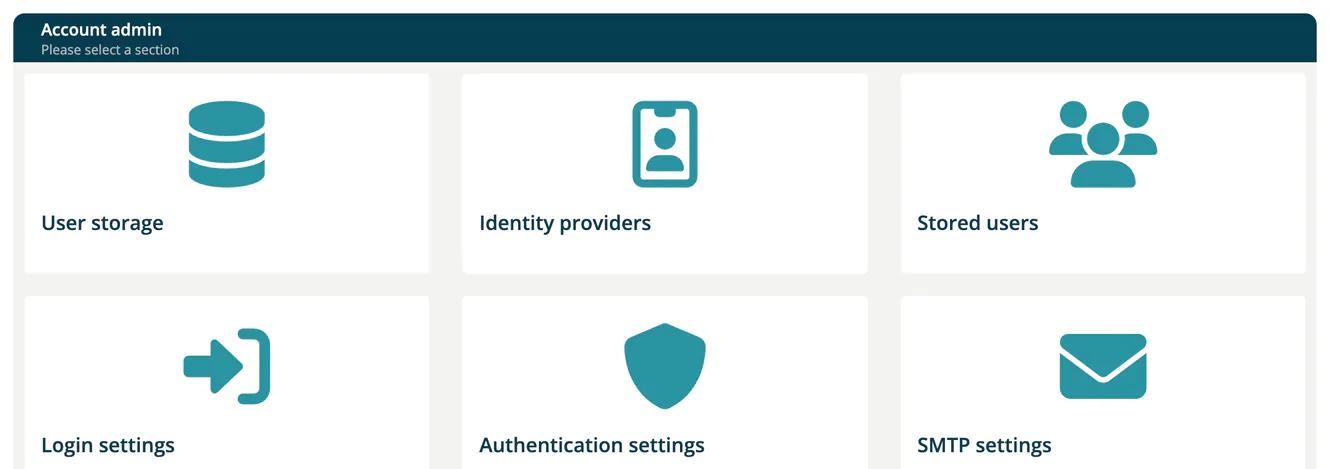
| Card | What you do there |
|---|---|
| User storage | Connect an LDAP directory and synchronize its users. |
| Identity providers | Add SAML, OpenID Connect or social sign-in providers. |
| Stored users | Create and manage users that live in the identity store. |
| Login settings | Registration, password reset, "Remember me" and SSL requirements. |
| Authentication settings | The steps of the browser login flow. |
| SMTP settings | The mail server for emails that the identity store sends. |
Before you start
Your account must be enabled for corporate login by TrustSource. If it is not, each page shows "Sorry, your account has not yet been enabled to activate an IDP". Write to support@trustsource.io and ask them to enable the feature.
How users sign in
Users open the login page and choose Corporate login. They enter the name of your company and select Login. The box accepts the company name, the company id or the realm name of your company, and then redirects to your identity provider.
When a user signs in for the first time, the roles that your identity provider sends are applied if the user has no roles in your company yet. Afterwards an account admin can change roles in User Management.
Note
If your company enforces corporate login, password and social login are no longer offered. Roles are then taken from the identity provider on every login, and User Management is hidden. A company switcher warns before you switch into such a company.