User Management
Note
Required role: account_admin
The page is hidden when your company enforces corporate login (IDM). In that case the page "Corporate login is required" points you to the identity provider, see Identity Integration.
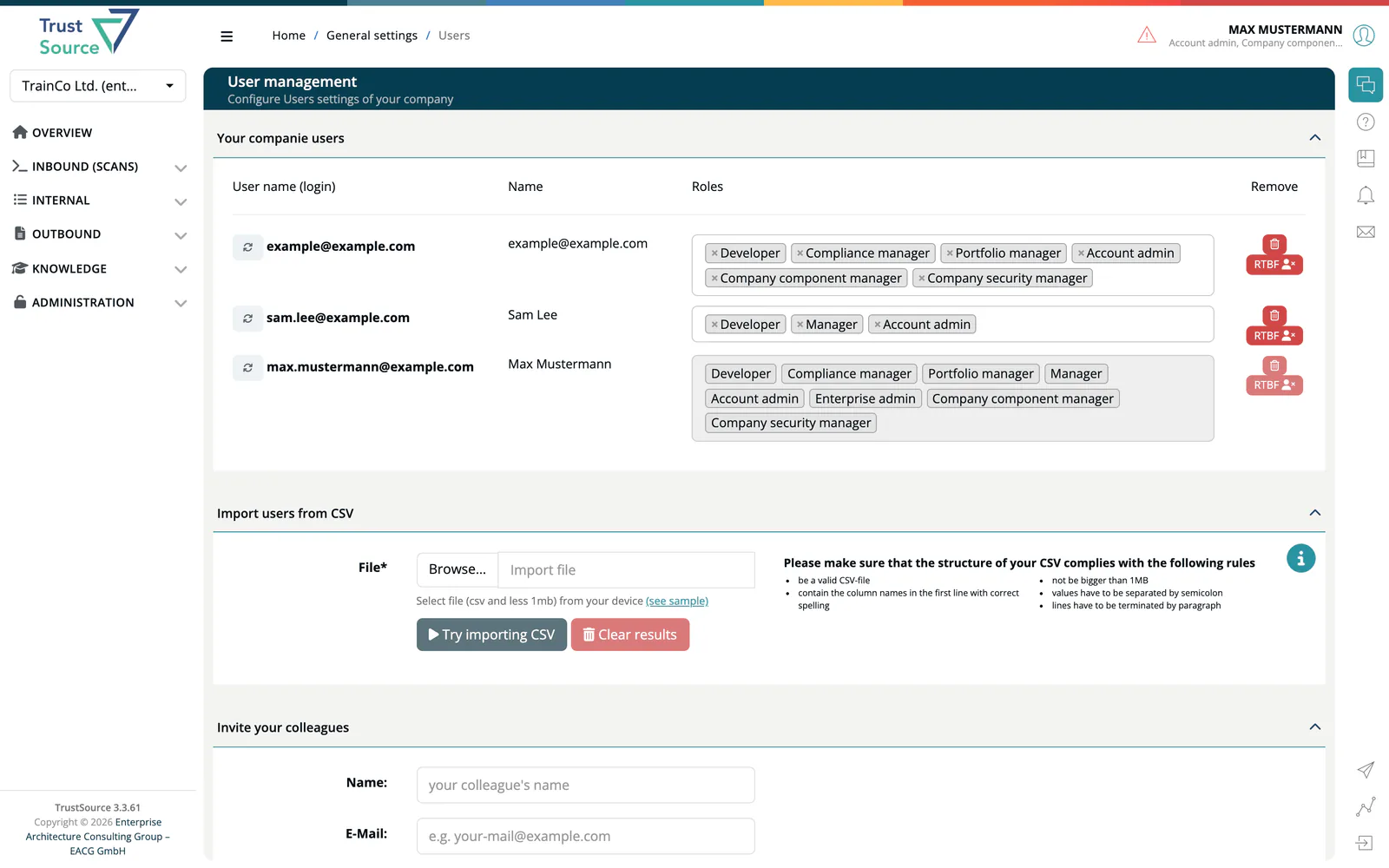
Invite colleagues, set their roles and remove users. Open Administration → User Management.
If your plan has a user limit and you exceed it, the page shows "Limit was reached": contact your account manager to upgrade, or remove the number of users it names.
The user list
The panel Your companie users lists every member with User name (login), Name, Roles and Remove.
- Change roles: open the Roles drop-down of a user, tick or untick roles. The change is saved immediately. A user must keep at least one role. You cannot change your own roles.
- Resend invitation: the refresh button next to the login sends the invitation again. It is disabled for yourself and for users who already verified their address.
- Remove: the trash button removes the user from your company.
- Remove with RTBF: the RTBF button removes the user under the right to be forgotten. A dialog asks for replacement text for the personal data. Leave it empty to use "RTBF_USED".
Warning
Assigning every role to one user gives that user all privileges. A warning appears when you do this.
The roles you can assign are the eight public roles. cvd_coordinator appears only when your company holds the cvdself license. See The 8 Roles.
Invite a colleague
Under Invite your colleagues enter the Name and E-Mail and select Invite. The new user receives an enrollment email and starts with the role developer; change the role in the list afterwards. If the address already belongs to someone in your company, the invitation is refused.
Import users from CSV
Use Import users from CSV to invite, change or remove many users at once.
- Prepare a semicolon-separated CSV file of up to 1 MB. Select (see sample) for an example. The first line holds the column names
matchID;Name;Email;Company;Roles. - Select Browse... and choose the file. The page shows Expected results per line: Invited, Updated, Removed, Not found or Error.
- Select Import CSV to run the import. Until you choose a file, this button reads Try importing CSV and is disabled. Clear results resets the panel.
| Situation | Result |
|---|---|
| New email address with roles | The user is invited with these roles. Separate several roles with a space, for example manager developer. |
| Existing user with roles | The user's roles are replaced. |
| Existing user with an empty Roles cell | The user is removed from the company. |
| New email address with an empty Roles cell | Not found, nothing happens. |
| Company differs from your company name | Error "Wrong company name". |
A single unknown role name falls back to developer; with several names, the unknown ones are ignored.
Note
Suspending or re-enabling an account is not done from this page - it is handled by TrustSource operations in a separate administration console. A suspended account is blocked at sign-in and, within seconds, also loses access from any session it already had open. If you need an account suspended or released, contact support.
Related
- Roles & Permissions
- Login History - who signed in and who did not
- Identity Integration