A 5-Minute Tour
This page takes you through the main navigation groups of TrustSource CE. By the end you will know where to find every major feature.
Note
What you see in your sidebar depends on your roles. This tour shows the full menu as seen by a user who holds all seven roles. Your view may be smaller - that is by design. The "Shown to" columns list the roles that see an entry.
1. Overview (Dashboard)
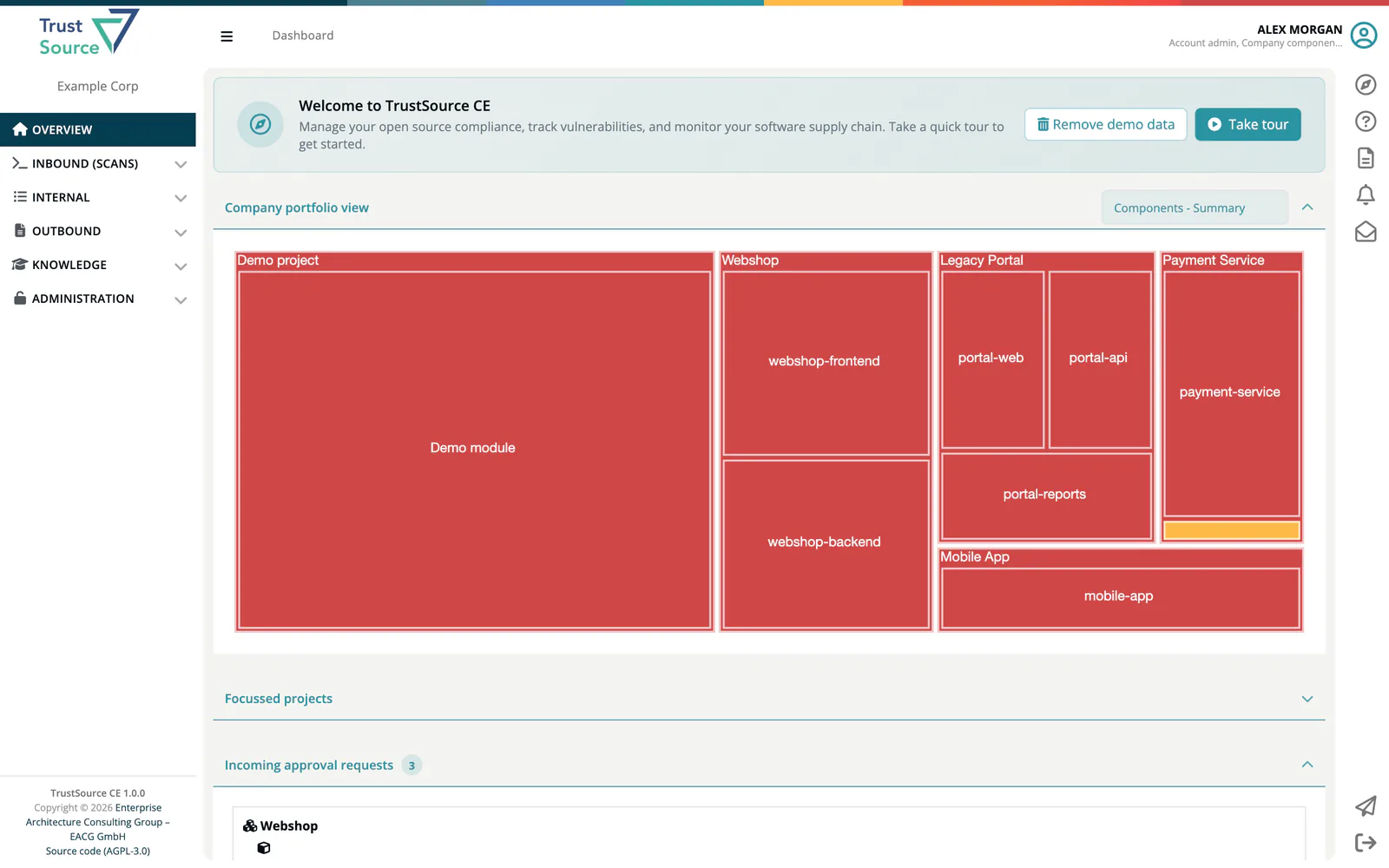
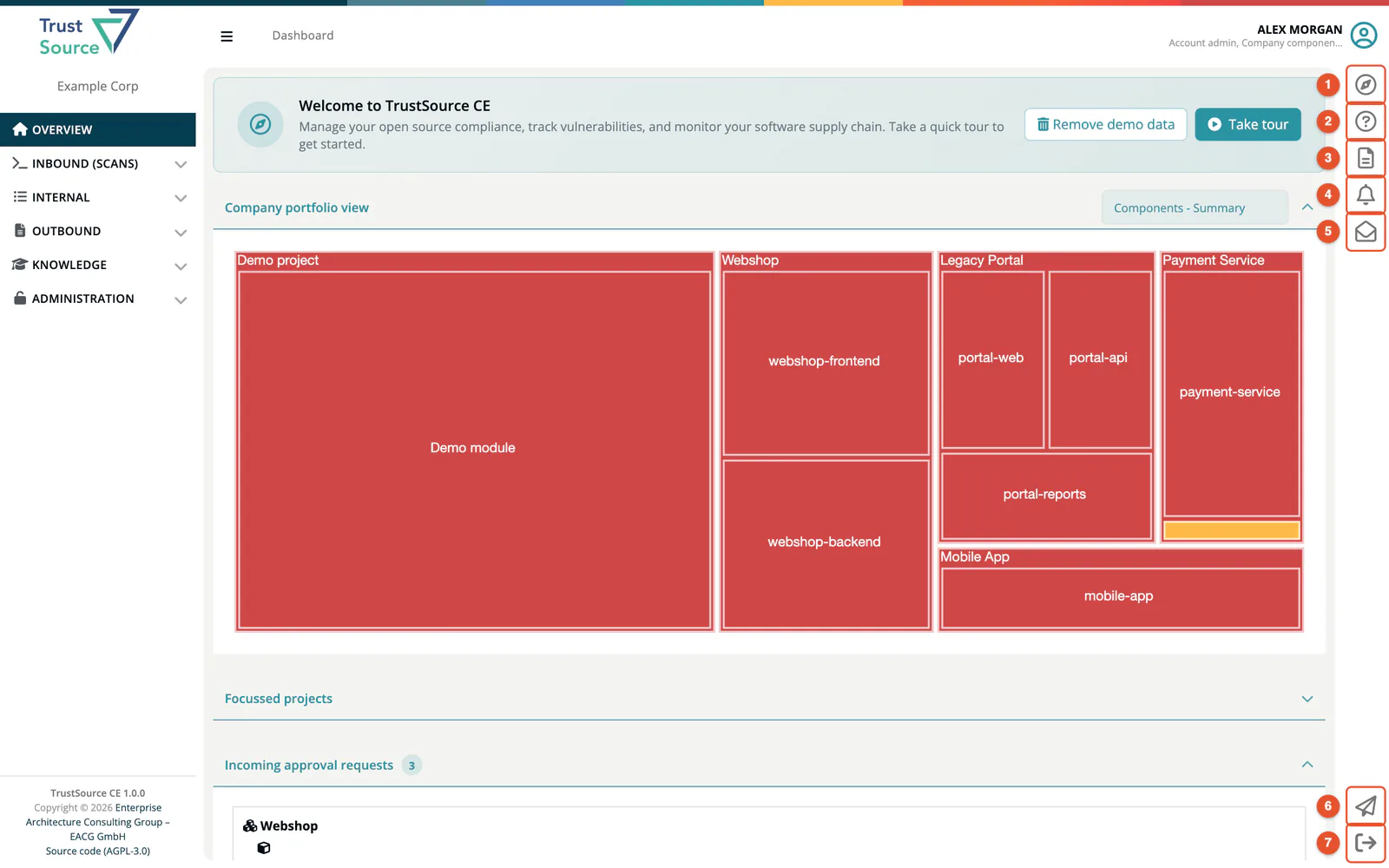
Overview opens the dashboard, your landing page after login. Depending on your roles it shows:
- Company portfolio view - all projects and modules as a treemap, coloured by status.
- Focussed projects - the projects you pinned.
- Incoming approval requests - approvals waiting for a compliance manager.
- Current modules compliance and history charts - violations, warnings and OK counts over time.
- Activity log - the latest actions in your company.
See The Dashboard for every widget.
2. Inbound (Scans) - bringing data in
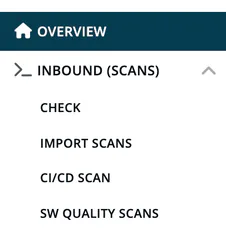
Everything that feeds data into TrustSource CE lives here. Shown to Developer, Compliance manager, Manager and Account admin.
| Menu entry | What it does |
|---|---|
| Check | Ad-hoc license or component lookup, no scan needed. |
| Import Scans | Upload an SPDX or CycloneDX file into a project. |
| CI/CD Scan | List of scans received from your CI/CD pipelines through the REST API. |
| SW Quality Scans | SARIF test results from code analysis tools. |
3. Internal - managing your work
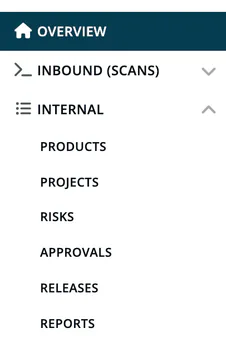
The largest group. This is where you manage the core objects. Shown to Developer, Compliance manager and Manager.
| Menu entry | What it does | Shown to |
|---|---|---|
| Products | What you ship to customers, with CRA classification, contacts, documents and photos. | all roles of the group |
| Projects | Containers for modules; the module views with their analyses live below them. | all roles of the group |
| Risks | Risk register with overview, risk list and tasks. | all roles of the group |
| Approvals | Approval requests and their review. | Compliance manager, Manager |
| Releases | Approved module releases and their documents. | all roles of the group |
| Reports | Hub for analysis reports: licenses, vulnerabilities, versioning, end-of-life, crypto, obligations and more. | all roles of the group |
4. Outbound - compliance documents
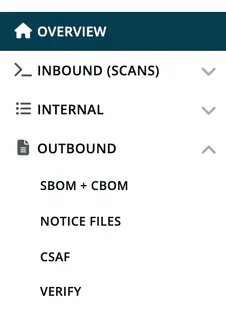
Documents you generate for others, or verify. Shown to Compliance manager, Manager and Account admin.
| Menu entry | What it does |
|---|---|
| SBOM + CBOM | Generate software and crypto bills of materials. |
| Notice Files | Generate attribution / notice files. |
| CSAF | Create, import and publish CSAF security advisories. |
| Verify | Check a signed SBOM, notice or VEX file against its signature. |
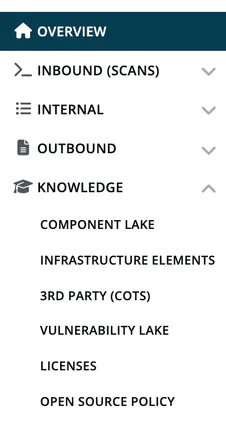
5. Knowledge - reference data
Reference data shared across all projects. Shown to every role.
| Menu entry | What it does |
|---|---|
| Component Lake | All components this installation knows - search, inspect, see where they are used. |
| Infrastructure Elements | Catalog of infrastructure such as databases, base images and web servers. |
| 3rd party (COTS) | Catalog of commercial off-the-shelf components. |
| Vulnerability Lake | The vulnerabilities OSV reported for the components this installation analysed. |
| Licenses | The license catalog. |
| Open source policy | Your company's open source policy. |
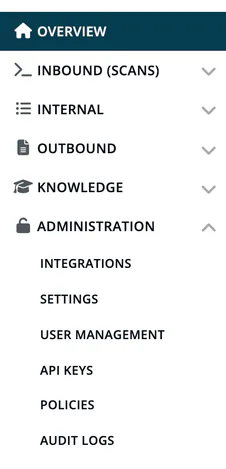
6. Administration - company settings
Company-wide configuration.
| Menu entry | What it does | Shown to |
|---|---|---|
| Integrations | Jira, TFS, GitHub, SCANOSS, LeanIX, webhooks and channels. | Account admin |
| Settings | Company details, allow/deny lists, encryption and quality settings, tags, private licenses, legal templates and more. | every role except Developer |
| User Management | Invite users, assign roles, remove members. | Account admin |
| API keys | API keys, release keys and CSAF feed keys. | Account admin |
| Policies | Open source policy, crypto algorithms, component end-of-life. | Account admin, Compliance manager, Company security manager |
| Audit logs | Company log and login history. | Account admin |
Note
Billing, account types, enterprise companies, identity integration (SSO), the AI assistants (OSCAR chat, Threat Model Agent), repository and mass scans and trainings are not part of CE. See CE and SaaS compared.
Copyright & Trademarks
The copyright line (EACG) at the bottom of the left menu opens the Copyright & Trademarks page (/copyright_trademarks), "Tools and trademarks used in TrustSource CE". Every signed-in user can open it. After a short statement that EACG is neither owner of nor related to these brands and trademarks, each entry shows its name with an anchor link, a description of the tool or data source and its license, how TrustSource CE uses it, and a View link to the source where one exists.
The list ships with TrustSource CE and is read-only: there is no screen to add or edit entries, and every start of the app restores the shipped entries.
The right bar
The narrow icon strip on the right edge of the screen gives you quick access to:
| # | Icon | Action |
|---|---|---|
| 1 | Compass | Guide for this screen - opens the guide panel with a tour for the current screen. See Guide, tour and demo project. |
| 2 | Question mark | Help - opens the TrustSource CE README on GitHub. |
| 3 | Document | API documentation - the built-in REST API documentation, where you can try the calls. |
| 4 | Bell | Updates - the release notes shipped with your version. |
| 5 | Envelope | Messages - your inbox. |
| 6 | Paper plane | Contact Account Admin - writes an email to your company's account admin. |
| 7 | Exit arrow | Logout - sign out. |
On a narrow screen, these entries move into the left sidebar.
Where to next
- Mental Model - understand the data hierarchy before you start.
- Guide, tour and demo project - load sample data and click through a real module.
- Inbound (Scans) chapter - bring your first SBOM in.
- Roles Cheat Sheet - all roles at a glance.