Policies
Note
Required role: account_admin, company_security_manager or compliance_manager. The Opensource policy card is shown to compliance_manager only; Risk assessment only with the risks feature.
Administration → Policies collects the company-wide rules that projects and modules are measured against. The page shows up to four cards.
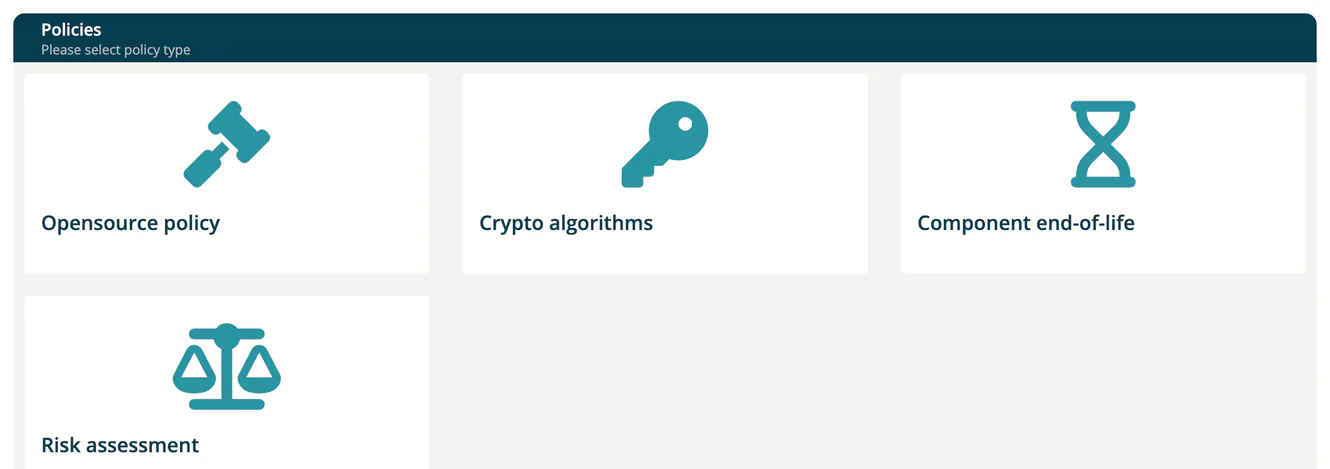
| Card | What it holds |
|---|---|
| Opensource policy | The policy documents your company publishes to its users. |
| Crypto algorithms | Algorithms your company denies. |
| Component end-of-life | The company default for end-of-life monitoring. |
| Risk assessment | The scales and decision limits your risks are assessed on. Needs the risks feature. |
Opensource policy
Compliance managers upload the policy document here. Users then see the active policy under Knowledge → Open source policy (see Open Source Policy).
- Select Upload new policy and enter the Policy name.
- Choose the Document (PDF or PPTX, up to 20 MB).
- Under Notify users, choose the roles that must be informed about the policy.
- Add a Summary of changes and select Create Policy.
- The new policy is not active yet. Click its row to open Update policy information, switch Active on and select Submit.
Activating a policy sets its Active from date to today and deactivates the policy that was active before. Only one policy is active at a time. Switching Active off removes the date again.
The list shows Active, Active from, Created, Updated, Policy name, Document, Notify, Presented, Viewed and Confirmed, so you can follow who has read and confirmed the policy. A policy name must be unique.
Crypto algorithms
Lists the algorithms your company denies. Each row shows Created, Key, Strength, Comment and Added by. Select a row to see where the algorithm is used.
To add one, select Deny algorithm and fill in Name, Strength (a numeric value such as 256 or 1024) and an optional Comment. The trash button in a row removes the entry.
Component end-of-life
Switch Enable end-of-life analysis for all modules on to monitor end-of-life dates company-wide. A confirmation asks you to approve the change, because it affects all future analyses.
While the switch is on, two sliders under End-of-life thresholds set the thresholds in months, from 0 to 24 (the sliders show values such as 12m). Select Update to save them.
| Slider | Meaning |
|---|---|
| Warning threshold | The level at which an end-of-life component is reported as a warning. |
| Violation threshold | The level at which an end-of-life component is reported as a violation. |
The value 0 shows "no monitoring". The violation threshold may not be larger than the warning threshold. Projects and modules can set their own values; see End-of-life (Project).
Risk assessment
The Risk assessment card opens the company's risk assessment scheme: your own impact classes, value scale (business value and exposure factor), annual-rate-of-occurrence scale and three decision thresholds (Decision required from, Acceptance not permitted from, Maximum temporary exception).
- Without a scheme of your own, the built-in default applies and nothing changes.
- Only
account_admin,compliance_managerandcompany_security_managercan change it; other roles see it read-only. - Without the
risksfeature the page only says that risk management is not part of the plan. - Projects and modules can override parts of the scheme on their CIA tab.
Step by step instructions, the entry rules and the effect of each threshold are in Risk Assessment Scheme.
Related
- Settings
- Open Source Policy
- Algorithms
- Risks - where the scheme is applied