Approve / Reject Workflow
Note
Required role: Compliance manager sees the Approve and Reject buttons and can assign requests. Over the API, approving and rejecting needs a key with the Compliance manager scope (or a key without scope).
Where you decide
You can decide in two places: on a row of the approvals list, or in the header of the approval after you have reviewed its tabs. Both show the same two buttons for requests that are not dry runs and not yet decided.
Take the request
The list column Assigned to shows who owns the request. A compliance manager clicks assign to me to take it, or the name with the cross to hand it back. Assignments are written to the Audit logs.
Approving
- Review the tabs. See Approval Detail Tabs.
- Click Approve and confirm with Yes, approve it! The dialog warns that you will not be able to revert this.
- The approval is closed; its documents stay as they were generated.
What happens on approval:
- The approval date and approver are recorded and shown on the Approved badge.
- The scans and analyses of the approved modules are marked as released.
- A release key is created and published for the approval. It serves the SBOM, the notice file and the CSAF VEX document of the release without a login. See Public Approves and Release keys.
- Managers who have approval events enabled in their communication preferences receive an inbox message (and an email, if enabled) with the result. Followers of the project or module are informed as well.
- The webhook triggers Approval and Release fire. See Webhooks and Channels.
- The approval appears in Internal → Releases.
Rejecting
- Review the tabs and identify the issues.
- Click Reject.
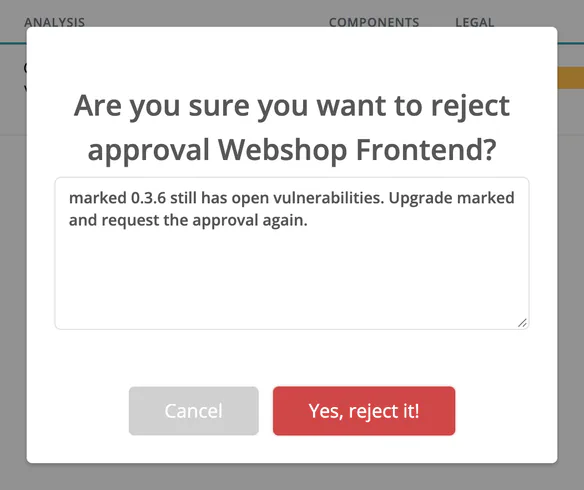
- Give the project manager the reasons in the dialog and confirm with Yes, reject it! A reason is required: without one you get You are not allowed to reject without reason!
- The approval is closed with the Rejected badge; hover over it in the list, or open it in the header, to read the reason.
Managers receive the result with the reason, and the webhook trigger Approval fires. The team can address the issues and request a new approval.
Note
Once approved or rejected, an approval cannot be changed. This is by design: it keeps the audit trail intact.
Over the API
POST /api/v2/compliance/approvals/{approval_id}/approve and POST /api/v2/compliance/approvals/{approval_id}/reject (with reason in the body) take the same decisions. GET /api/v2/compliance/approvals/{approval_id} returns name, creation date, initiator, draft flag, binary links, the link to the project or module and the notice file progress. See Compliance approvals.
Related
- Approval Detail Tabs: what to review
- Releases: what happens after approval
- Public Approves: sharing the release documents