The Dashboard
The dashboard is the first page after login; the sidebar entry Overview opens it. It gives you your portfolio status, your pinned projects and pending work at a glance. Which widgets you see depends on your roles, and most widgets only appear once your company has at least one module in TrustSource CE.
Welcome banner
The banner at the top reads Welcome to TrustSource CE and has these buttons:
- Take tour starts a guided tour of the navigation, the breadcrumb, the guide, messages, help, the API documentation and sign out. It starts by itself on your first visit.
- Load demo project creates a demo project with a sample module, so you can try the widgets and the module views. It shows while your company has no modules, and until you have loaded the demo once. Shown to Compliance managers and Managers.
- Remove demo data deletes the demo project again. It replaces the load button while demo data exists. Shown to Compliance managers and Managers.
See Guide, tour and demo project for details.

Widgets by role
| Widget | Shown to |
|---|---|
| Company portfolio view | Portfolio manager |
| Focussed projects | Developer, Compliance manager, Manager, Account admin |
| Incoming approval requests | Compliance manager |
| Current modules compliance | Developer, Compliance manager, Manager, Account admin |
| Δ since last ... / History for last 12 ... | Developer, Compliance manager, Manager, Account admin |
| Licenses inside component versions, Modules overview | Developer, Compliance manager, Manager, Account admin |
| Activity log | Compliance manager, Manager |
Users who hold none of the roles Developer, Compliance manager, Manager or Account admin see No widgets are available for your role (a Portfolio manager additionally sees the portfolio view).
Note
Without any module, the dashboard shows only the welcome banner and, for Compliance managers and Managers, the activity log.
Company portfolio view
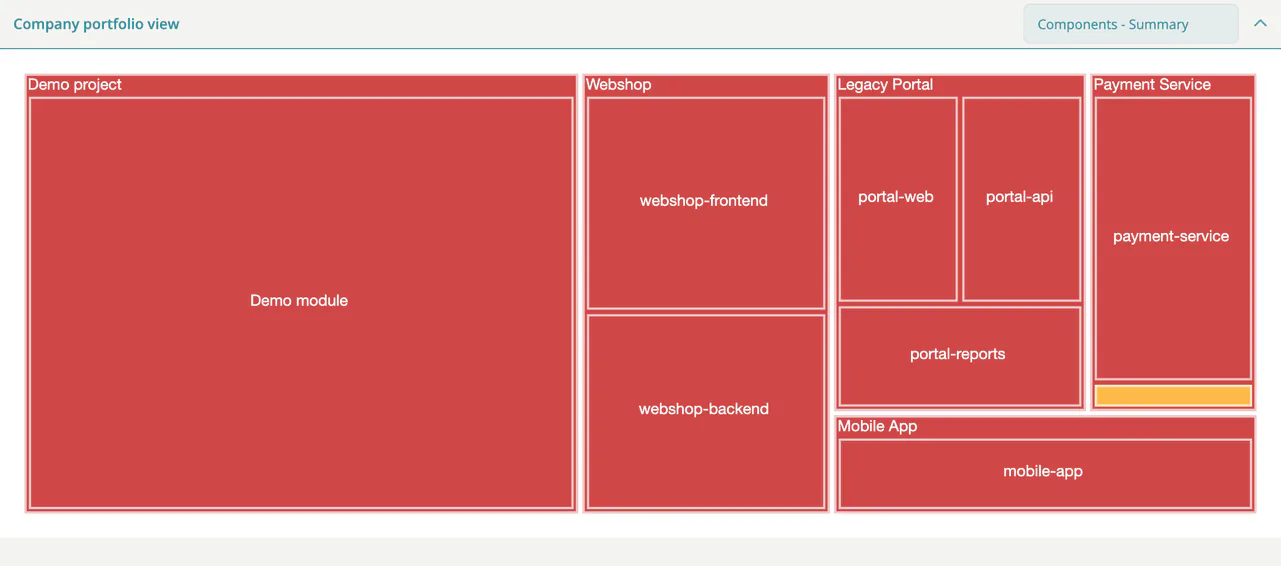
A treemap of all your projects (large rectangles) and their modules (small rectangles). Colours show the worst status: red for violations, yellow for warnings, teal otherwise. The panel is collapsed while your company has fewer than two modules.
- Choose a View type. The first word sets the size of the rectangles (components or licenses), the second the status that colours them: Components - Summary, Licenses - Summary, Components - Vulnerability, Components - Legal, Components - Viability, Components - Versioning.
- Click a project to zoom into it. Click Back to all to return.
- Click a module to open its dependencies in a new tab.
Focussed projects
Shows your pinned projects as cards, with a count badge. Pin a project with the thumbtack button (Pin to Dashboard) in the project list. Unpin it with the same button (Unpin from Dashboard). Without pins it reads You have not pinned any project yet and stays collapsed.
Incoming approval requests
Open approval requests grouped by project and module, with a count badge. Each line shows the request name, who created it, who it is assigned to, its age and, if there is one, a link to the Notice file. Click the request name to open the approval. Click assign to me to take the request, or the cross to remove the assignment. The panel reads No incoming approval requests were found when nothing is pending.
Current modules compliance
Three bars for Modules, Unique Components and Licenses. Each bar splits into violations (red), warnings (yellow) and OK (green); hover a segment for the count.
Δ since last ... and History
- Δ since last day/week/month shows the change in modules, components and licenses since the previous snapshot.
- History for last 12 days/weeks/months shows the same three numbers as small bar charts over the last 12 periods.
The period depends on the age of your company data: days for the first two weeks, weeks until about 12 weeks, months after that.
Licenses inside component versions and Modules overview
- Licenses inside component versions is a pie chart of the licenses in use. Choose a project or All projects in the selector.
- Modules overview is a bar chart per module. Click a bar to open the module's licenses.
Activity log
The ten latest entries of the company log, with user, age and message. Failed actions show a red mark. View all logs opens the company logs.