Risks List
Note
Required role: developer, compliance_manager, manager or account_admin to view. The Add risk button is shown to compliance_manager and manager only.
Required license feature: risks
The Risks tab is the register: one row per risk, for the whole company or for the project or module you choose. Click a row to open the risk in the editor.
Choose what the list shows
Use the selector at the top right:
- All projects: every risk of the company. Above 5,000 risks the list shows the 5,000 newest, with a note; choose a project to see the rest.
- All modules of a project, or a single module.
On a project's own Risks page (the Risks tile on the project page) the project is fixed and you can only narrow down to one of its modules. That page also lists the project's threat models if your plan includes the threat feature.
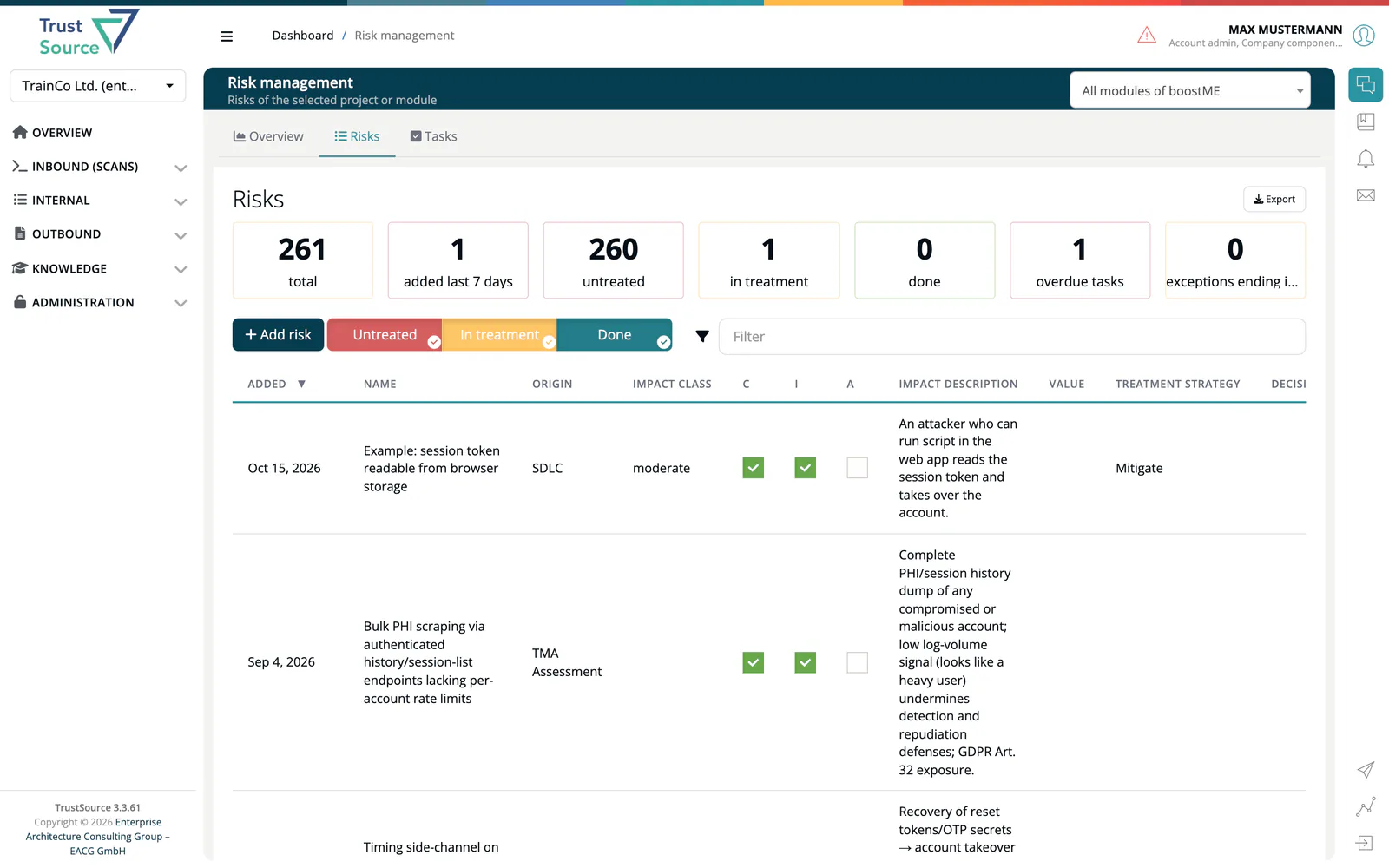
Tiles
The tiles count the risks in scope: total, added last 7 days, the three treatment groups Untreated, In treatment and Done, overdue tasks, and exceptions ending in 30 days. The three groups always add up to the total. See Treatment and State.
Filter the list
- Switch the Untreated, In treatment and Done buttons on or off to show or hide a group.
- Use the search box above the table to filter by any text.
- Links from the Overview open the list with a filter, shown as chips such as State: assessed. Click Clear filter to remove them.
Columns
Added, Name, Origin, Impact class, C, I and A (the confidentiality, integrity and availability boxes), Impact description, Value (the annual loss expectancy), Treatment strategy, Decision, Valid until, Countermeasures, State and Treatment. An impact class that your scheme no longer contains is kept and marked not in scheme. Impact classes sort by their rank in the scheme.
When you look at a project, the risks that belong to one of its modules show in Module instead of a delete button. Click the label to open the module's own list; these risks can only be edited and removed there. A module's list shows only the module's own risks, not those of its project.
The trash button at the end of a row removes the risk at once, without a confirmation. The removal is recorded in the risk's history and in Company Logs.
Export
Export downloads the listed risks as a CSV file named risk-register-<date>.csv. It contains the rows of the current selection with the group buttons and the filter chips applied; the text typed in the search box is not applied.
Add a risk
- Select a project or module (the Add risk button is hidden in the company-wide list).
- Click Add risk. The Risk capture form opens.
- Enter a Name (3 to 200 characters), choose one or more Origin values and describe the impact.
- Tick the affected Confidentiality, Integrity, Availability boxes, pick an Impact class and a State. Optionally fill in the impact figures and the Threat model context.
- Click Save, or Save and Create new one to add the next risk.
A risk can also start from a finding: Create risk on a SARIF finding, on an OBOM finding, or by setting a license by hand. See Automatic Risks.
The risk editor
Click a row to open a risk. The header keeps Save, the previous/next arrows with a position counter and Back to list. The address bar names the open risk, so you can share the link.
The top row holds Name, Origin, Impact class, Treatment strategy and State. The tabs below are:
| Tab | What it holds |
|---|---|
| Impact | The C/I/A boxes, the description of the impact and the financial figures. |
| Decision | The documented decision. See Decisions. |
| Countermeasures | What you do about the risk. See Risk Tasks. |
| Tasks | Follow-up tasks per countermeasure. |
| Threat model | STRIDE categories, CWEs, ENISA category and threat, affected element type, trust boundary crossing, TM method, TM run ID and OTM threat ID. |
| Occurrences, Affected components, Affected resources | Only on automatically created risks: the evidence behind them. |
| History | Every change. See Risk History. |
Impact figures
Switch between Simple impact view and Detailed impact view.
- Simple: choose Business value (BV), Exposure factor (EF) and Annual rate of occurrence (ARO) from the lists of your scheme (by default low, moderate, high and likely, unlikely, rare).
- Detailed: enter BV in your company currency, EF in percent and ARO per year. TrustSource calculates SLE = EF * BV and ALE = SLE * ARO.
Proposed impact class
Risks created from a SARIF weakness, a vulnerability or a manually set license carry a proposed impact class, derived from the finding's severity and the module's CIA requirements. The form shows the proposal and what it is based on, and tells you when it differs from the stored class. Change the class once and later imports keep your choice; only the proposal beside it is refreshed.
Note
A module's risk opened from the project register is read-only and shows This risk is managed in module level. Open it from the module to edit it.
Related
- Treatment and State - strategy, state and the three groups
- Risk Tasks - countermeasures and tasks
- Risk History - the change trail