Legal (Module)
Note
Required role: Developer, Compliance manager, Portfolio manager and Manager see the tab. Editing, the wizard, import and propagate are for managers and compliance managers who are the module's default project manager or default compliance manager (or any of them while none is set). See the Module Settings Permission Matrix.
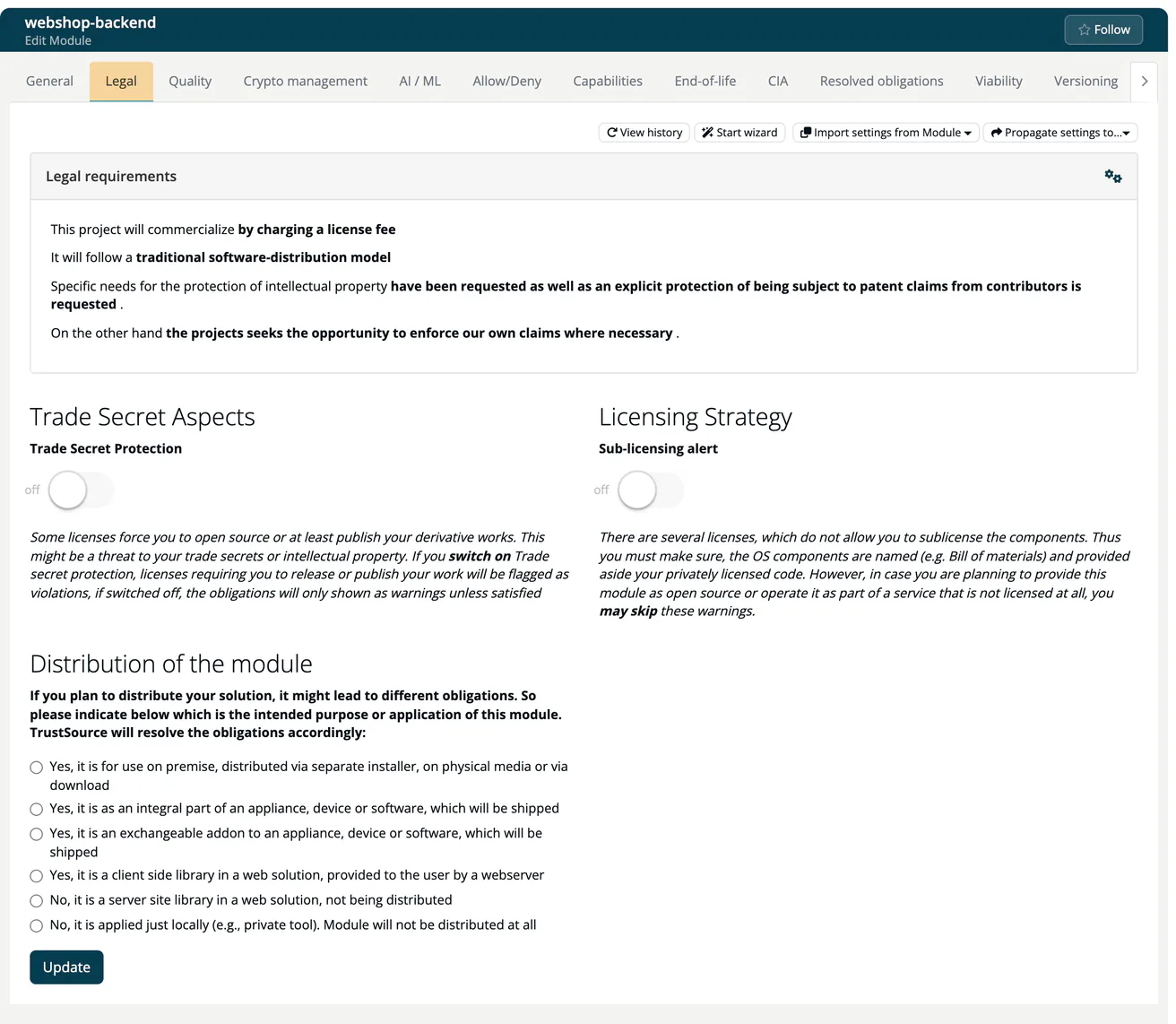
The module Legal tab captures how this module is protected, licensed and distributed. The commercial and IP framing of the whole project is set on the project's Legal tab; both together decide which obligations and violations the bundled legalcheck service reports for the module's components.
Project legal requirements
If the module belongs to a project, the panel Legal requirements at the top summarises the project's legal settings, with a cogs icon that opens them. If the project's legal settings are still empty, a red note says that they need completion to allow a complete analysis, even if the module settings are complete.
Fields
| Section | Field | Options |
|---|---|---|
| Trade Secret Aspects | Trade Secret Protection | Yes, trade secrets need to be protected or No, trade secrets may be released. When protection is on, licenses that require you to release or publish your work are flagged as violations; when off, their obligations show as warnings until satisfied. |
| Licensing Strategy | Sub-licensing alert | This module shall be licensed under a proprietary license or It is planned to release the module as open source software. Some licenses do not allow sublicensing; if you release the module as open source or operate it without licensing, you may skip these warnings. |
| Distribution of the module | Distribution | On premise (separate installer, physical media or download); integral part of a shipped appliance, device or software; exchangeable add-on to such a product; client-side library in a web solution; server-side library in a web solution (not distributed); or applied only locally (not distributed at all). |
Click Update to save.
Actions
The buttons in the upper right:
- View history / Close history: show earlier versions of the settings with author and date.
- Start wizard / View all: switch between a step-by-step wizard (Trade Secret, Licensing Strategy, Distribution; Next, Back, Finish) and the full form.
- Import settings from Template: apply a company legal template. See Legal Templates.
- Import settings from Module: copy the legal settings of another module (with a name search).
- Propagate settings to...: push the settings to one other module, All my n modules or All my n project modules. Portfolio managers also see All n modules and All n project modules.