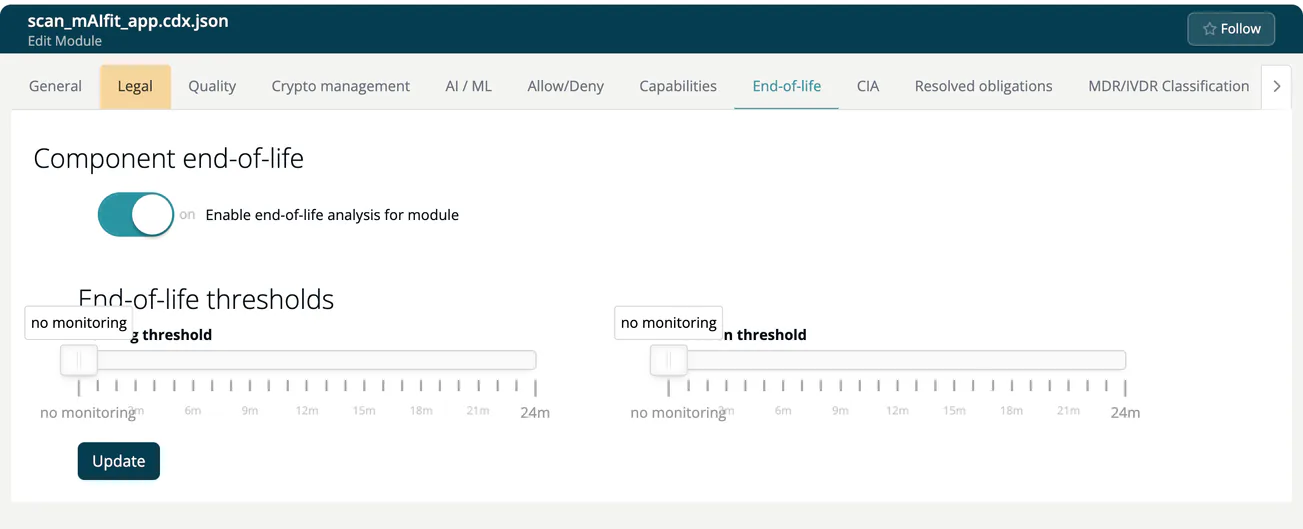
End-of-life (Module)
Note
Required role: everyone who can open the module settings reads the tab. Editing is for managers and compliance managers who are the module's default manager (or if none is set); developers see it read-only. Saving is also checked on the server, which accepts account admins, managers and compliance managers. See the Settings Permission Matrix.
Software that has reached its end of life no longer gets security fixes. This tab controls when TrustSource flags such components in this module, for example a debian:11 base image or a Node.js 16 runtime.
Steps
- Turn on Enable end-of-life analysis for module.
- Confirm Are you sure you want to update end-of-life policy? (This will affect all future analysis!) with Yes, update settings!
- Under End-of-life thresholds, set the Warning threshold and the Violation threshold. Both are sliders from
no monitoringto24m(months). - Click Update. A toast confirms Module end-of-life policy successfully changed.
The warning threshold must not be lower than the violation threshold, unless it is no monitoring. Otherwise the form shows 'Warning threshold' must not be lower than 'Violation threshold'. A module that is saved is marked for a new analysis.
The thresholds appear only while the switch is on.
Where the result shows
The module's component views show end-of-life status for components. The project-wide list is the End-of-life report, see Analysis Reports.
Note
The same policy exists on company level (Settings → Policies, see Policies) and on project level (End-of-life (Project)).