Recipe: Migrate from Another SCA Tool
Bring the bills of materials you keep in another software composition analysis tool into TrustSource CE, then continue with scans from your pipelines.
Note
You'll need:
- SBOM exports from the old tool: CycloneDX 1.2 to 1.7 JSON, SPDX JSON or SPDX RDF. SPDX tag-value and spreadsheets are not supported; convert them to SPDX JSON first.
- The role Manager or Compliance manager to create projects in the app, or an API key with the scope
developerormanagerfor scripted imports. Both scopes can also create projects withPOST /core/projects.
Steps
1. Plan the structure
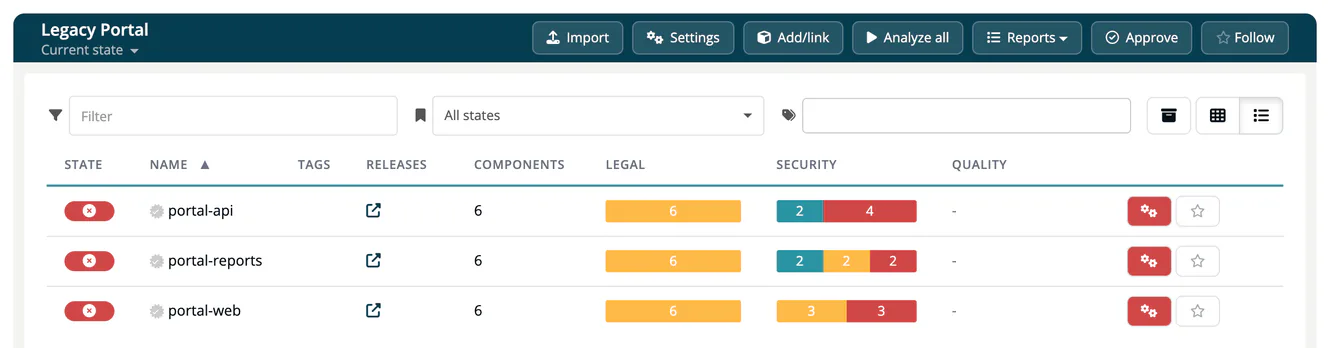
Map the old tool's structure to projects and modules: a project groups the parts of one product or service, a module is one buildable part with its own bill of materials. One SBOM file becomes one module. Choose module names you will keep: later scans and SARIF uploads must use the same names to land on the same module.
2. Export the SBOMs
Export one CycloneDX or SPDX file per application, component or repository from the old tool.
3. Create the projects
Create each project under Internal → Projects → Create, or with the API, which returns the existing project if the name is taken:
curl -X POST "https://<your-host>/api/v2/core/projects" \
  -H "x-api-key: $TS_API_KEY" -H "Content-Type: application/json" \
  -d '{"name": "Legacy Portal"}'
4. Import the files
A few files: open Inbound (Scans) → Import Scans, pick the project, set the toggle to CycloneDX or SPDX, choose the File, enter the Module name and select Import.
Many files: loop over them with the import API. This example imports every CycloneDX file of a folder into one project, named after the file:
for f in sboms/*.json; do
  module=$(basename "$f" .json)
  curl -fsS -X POST \
    "https://<your-host>/api/v2/core/imports/scan/cyclonedx/json?project=Legacy%20Portal&module=$module" \
    -H "x-api-key: $TS_API_KEY" -F "file=@$f"
  echo
done
For SPDX use .../imports/scan/spdx/json or .../imports/scan/spdx/rdf; for RDF set the content type on the file part, -F "file=@$f;type=application/rdf+xml", or the upload is read as JSON and refused with 400. Each import answers with scanId and moduleId; warning and contentNotices name values that could not be taken over, for example licenses that did not match a known license. See Imports.
5. Set the legal settings
Run the legal settings wizard for each project and, where the distribution differs, for each module. Without legal settings the license evaluation is not meaningful. See Fill in the Legal Questionnaire.
6. Carry over your decisions
Decisions you made in the old tool are not part of an SBOM. Record them again:
- licenses and components you always allow or deny: company-wide under Administration → Settings → License allow/deny and Administration → Settings → Component allow/deny, or per project and module on their Allow/Deny settings tabs;
- vulnerabilities you assessed as not exploitable: on the module's Allowed vulnerability settings tab, with your reason;
- licenses you determined by hand: with manual license resolution.
7. Review and switch over
Check each module's List and Legal tabs and the project reports. Then point your pipelines to TrustSource CE with the same project and module names. See CI/CD Integration.
Did it work?
- [ ] Every exported SBOM is a module in the intended project.
- [ ] The modules show components and an analysis date.
- [ ] A new pipeline run updates an existing module instead of creating a second one.