Notice Files
Note
Required role: compliance_manager, manager or account_admin (the Outbound menu). Creating a file also works for developer and portfolio_manager; editing, versioning, freezing and binary links need compliance_manager or manager.
A notice file (also called attribution file) documents the open-source components used in your software, their licenses and the license texts. It is the file you ship with your product to meet attribution obligations. Open Outbound → Notice Files.
The notice files list
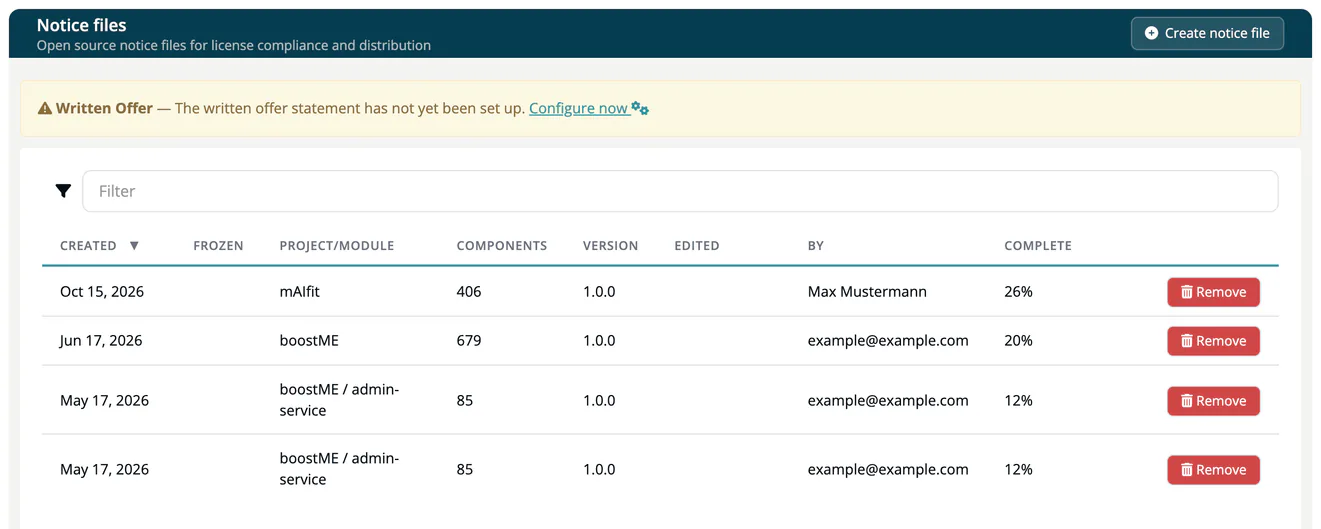
The page Notice files lists every notice file of your company, including the ones created by approvals. The columns are the same as for SBOM files: Created, Frozen, Project/Module, Components, Version, Edited, By, Complete and Remove.
If your company has not set up a written offer yet, a Written Offer warning above the list says so and links to Configure now. The written offer is maintained under Administration → Settings, see Settings.
Create a notice file
- Click Create notice file.
- Choose the Project or module: All module of ... for a whole project, or one module.
- Click Create notice file.
An approval creates the notice file of its release automatically.
Work on a notice file
Click a row to open the file. The left side groups the components by license. Open a license to see its License text and the components it applies to; components whose license could not be detected are grouped under License not detected. Each license and each component has a cleared checkbox; tick it when the attribution is complete.
The TODOs Navigator on the right counts components, obligations and remaining ToDos, shows the completion in percent and lists the actions still required per component. If your company has a written offer, it appears there as Written Offer: tick it to include it in the file, and use the pencil to change its Title and Description for this file.
If licenses could not be matched for some components, a Notice button in the header lists them.
Versions, freezing and binary links
- Version increments the version of the file.
- Freeze locks the file after a confirmation. A frozen file cannot be changed.
- Binary links shows and, while the file is not frozen, edits the links to the shipped artifacts. See Binary Linking.
Download
| Button | Format |
|---|---|
| The notice file as PDF, with your company logo. | |
| TXT | The notice file as plain text. |
External parties read the notice file of a release through its release key (see Public Approves).
Related
- Approvals - notice files are created with every approval
- Obligations - which obligations require attribution
- SBOM + CBOM - the bill of materials of the same release