Your Profile
The Manage Profile page ("Configure your settings") holds your personal settings in TrustSource. Open it by selecting your name and roles in the header.
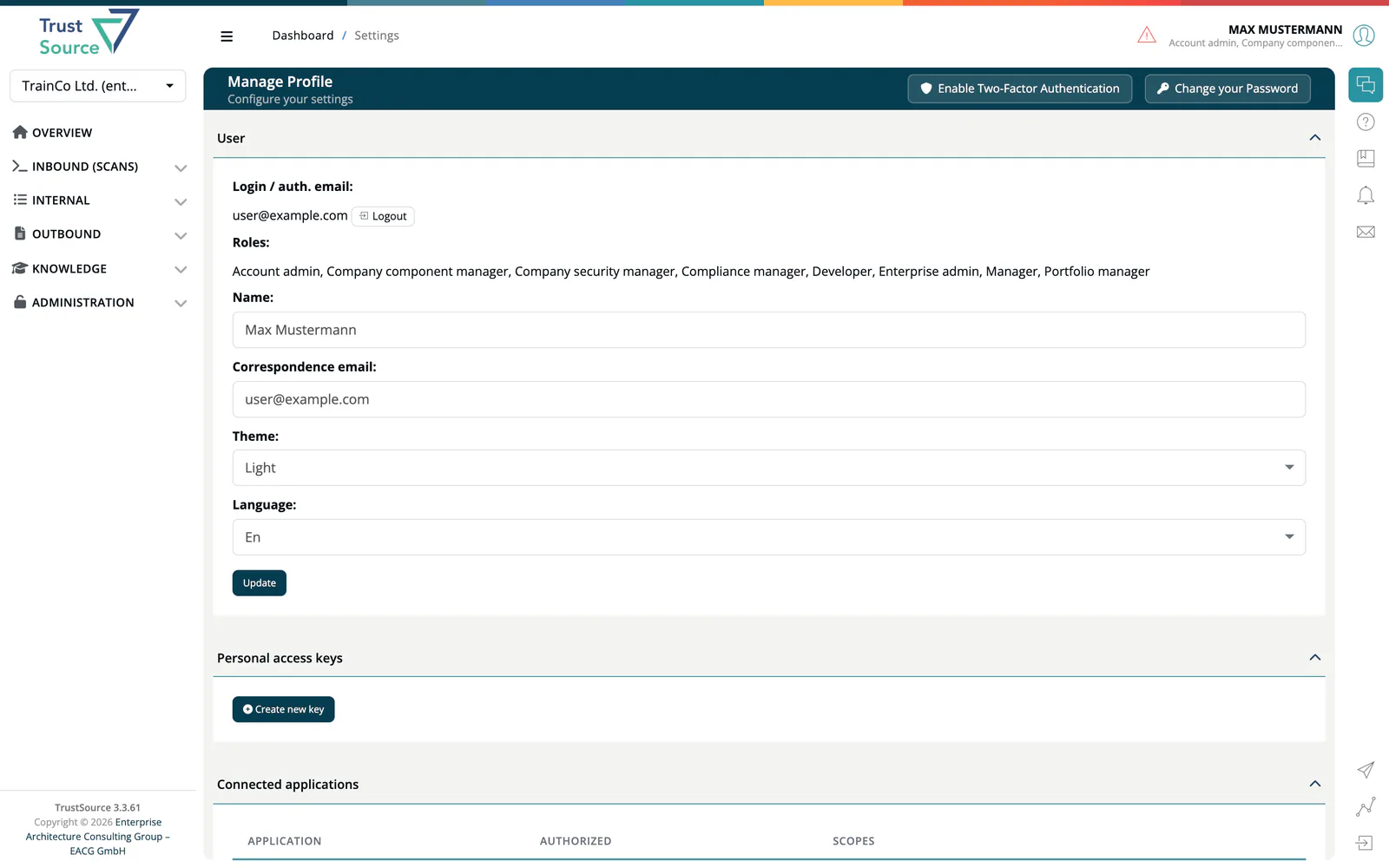
The page header has two buttons: Enable Two-Factor Authentication (or Disable Two-Factor Authentication) and Change your Password. The 2FA button is shown only if you sign in with a password. If your company enforces corporate login, Change your Password is disabled.
Two-factor authentication
Two-factor authentication (2FA) adds a time-based code from an authenticator app to your sign-in with a password.
Enable it:
- Select Enable Two-Factor Authentication. The dialog Two-Factor Authentication opens.
- Scan the QR code with your authenticator app ("Scan this QR code with your authenticator app"), or type the key shown under "Or enter this key manually".
- Enter the 6-digit code from the app under Authentication Code.
- Select Verify & Enable.
While 2FA is on, the header shows a green 2FA label, and every sign-in with a password asks for a code after the password.
Disable it: select Disable Two-Factor Authentication and confirm with Yes, disable it.
Change your password
Select Change your Password, enter the Old Password, the New Password and Repeat new Password, then select Change password. A new password must be at least 12 characters long and contain a capital letter, a special character and a number.
User
| Field | Description |
|---|---|
| Login / auth. email | The address you sign in with. It cannot be changed here. Logout signs you out. |
| Roles | Your roles in the current company. Only an account admin can change them. |
| Name | Your display name. |
| Correspondence email | The address notifications are sent to. |
| Theme | Light or Dark. |
| Language | The interface language. Currently En only. |
Select Update to save.
Personal access keys
Personal access keys let you call the REST API with your own roles, for example from a script on your machine.
- Select Create new key. The key is created unpublished.
- Select Publish in its row to activate it.
- Use the clipboard button to copy the full key. It is only available while the key is published.
| Column | Meaning |
|---|---|
| Created | When the key was created. |
| Key (partial view) | A masked form of the key. |
| Last used | When the key was last used. |
- The key takes your roles in the current company at creation time as its scope. See API scopes.
- Unpublish switches the key off; Publish switches it on again. The profile has no delete button.
See API keys.
Connected applications
Lists the external applications you have authorized to use your TrustSource account, with Application, Authorized and Scopes. Revoke withdraws the authorization. Without any, the panel reads "No external applications have been authorized."
Communication preferences
Choose which notifications you receive in Messages and whether they are also sent by email. Select Update to save.
Event notifications
- All events
- New module analysis processed
- Analysis result changed
- Module new releases, approves or rejections
- Send all events also by email
Alarm notifications
- All alarms
- Compliance issues in my project
- New vulnerabilities in my project
- End-of-life monthly digest
- TrustSource operational issues
- Send all alarms also by email
General communications
- TrustSource newsletter
- TrustSource events and promotional information
- EACG events and promotional information