Your First Login
This page walks you through logging into TrustSource for the first time, choosing a company, and finding your way around the interface.
Login methods
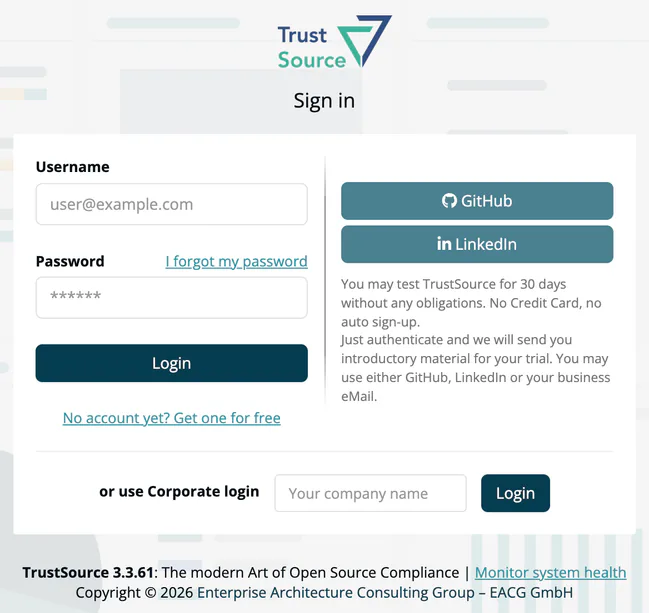
TrustSource supports five ways to sign in:
| Method | When to use it |
|---|---|
| Email & password | The default. Enter your Username (email address) and Password. When you register, the password needs at least 12 characters, including a capital letter, a special character and a number. |
| GitHub | Click GitHub on the sign-in page. Your GitHub profile (name, email, avatar) is imported automatically. |
| Click LinkedIn. Works the same as GitHub. | |
| Corporate login (Keycloak) | For Enterprise and Medical accounts with SSO. Under or use Corporate login, enter your company name in Your company name, click Login, and you are redirected to your corporate identity provider. |
| Enrollment link | When an admin invites you to a company, you receive an email with a direct enrollment link. |
Note
Your admin can enforce corporate IDM login for all users in the company. When this is active, a sign-in with password, GitHub or LinkedIn into that company is refused, and everyone must authenticate through Corporate login. In the company switcher, such companies carry a key icon.
Tip
If you registered yourself and the verification email never arrives, this can mean the sign-up is still being checked. Genuine sign-ups are unaffected, but if several minutes pass with no email, contact support rather than registering again.
Two-factor authentication
If you sign in with a password and have 2FA enabled, you will be asked for a six-digit code from your authenticator app after entering your password. 2FA is configured in your Profile settings.
What happens on first login
- Account creation: your user profile is populated from the login method you chose (email, GitHub profile, LinkedIn profile, or Keycloak claims).
- Company setup: if you registered yourself (not via enrollment link), a new company is created for you automatically. You receive the roles Developer, Compliance manager, Portfolio manager, Manager, Account admin, Company component manager and Company security manager.
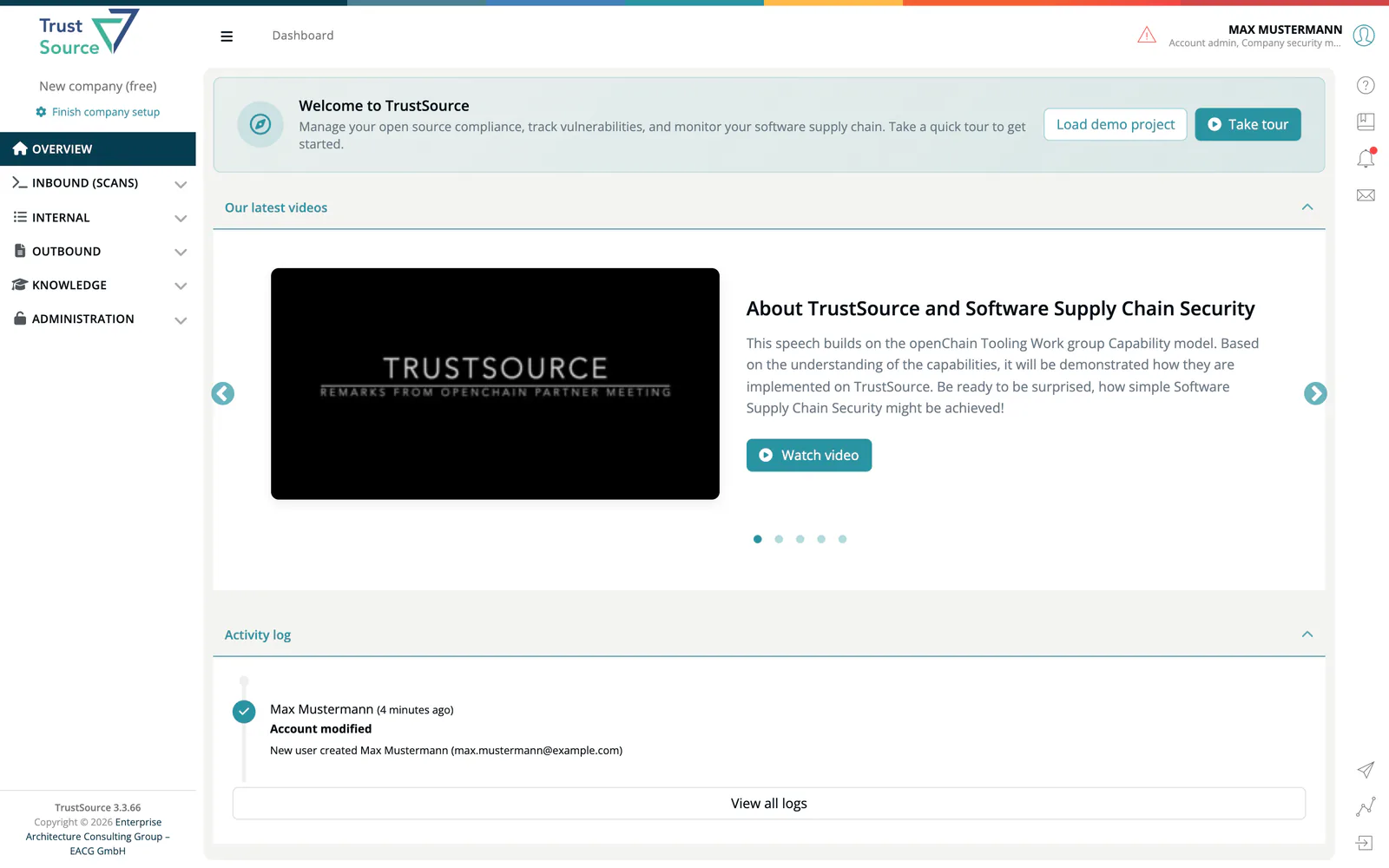
- Workspace loading: while your company is being set up, you see a brief Setting up your workspace screen ("We're getting your account ready. This usually takes a few seconds.").
- Dashboard: once ready, you land on the dashboard.
Switching companies
If you belong to more than one company (for example, your employer's account and a personal trial), you can switch between them. The switcher appears only when you belong to more than one company.
- Open the left sidebar (click the hamburger icon if collapsed).
- At the top, your current company name and account type are shown. Click them to open the company dropdown.
- Select the company you want to switch to. For a company that enforces corporate login, confirm the warning first: without an active IDM account you cannot sign in to it.
The app reloads with the roles, projects and data of that company. Each company is a separate tenant.
Finding your way around
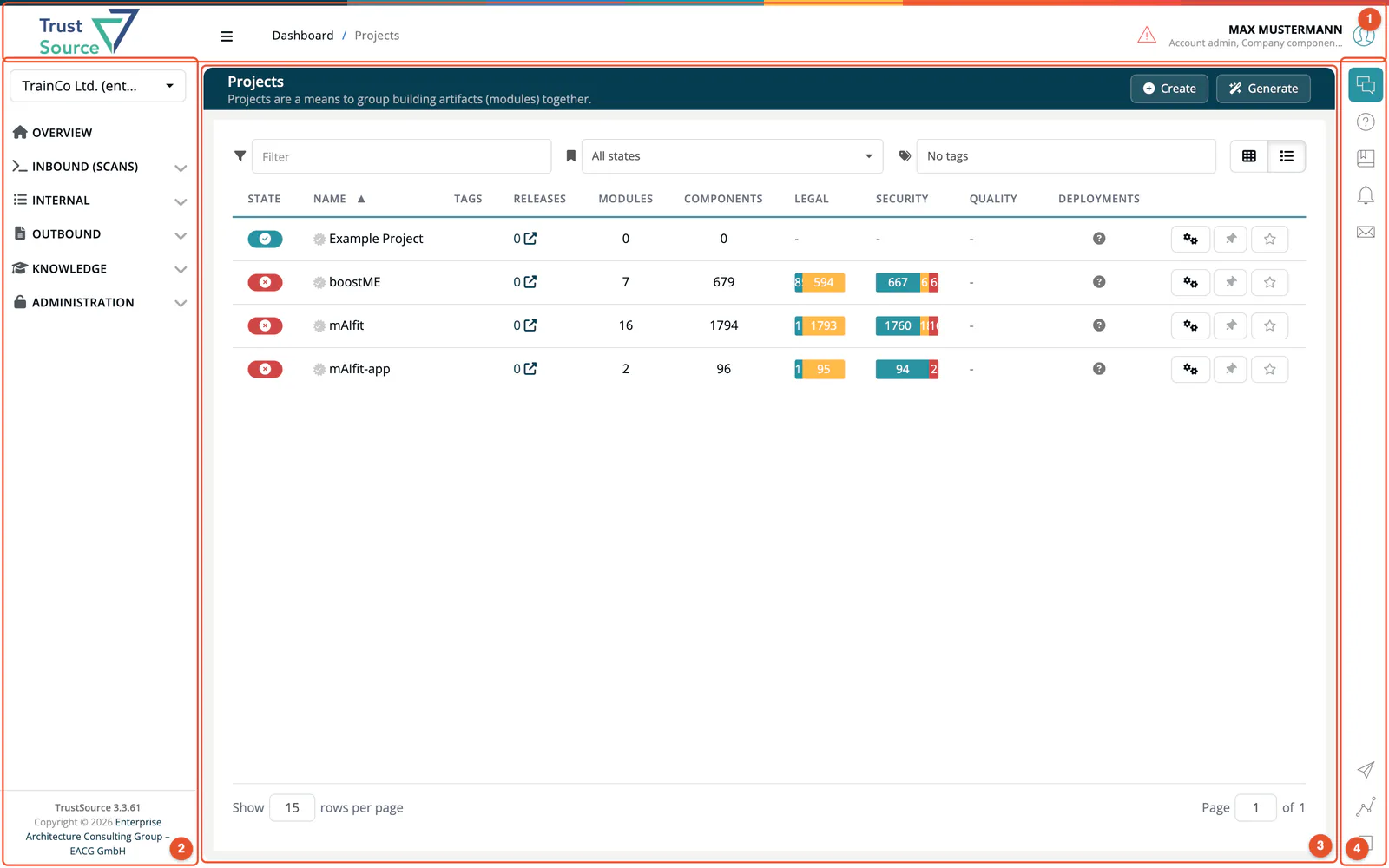
The interface has four main areas:
| Area | Location | Purpose |
|---|---|---|
| Header | Top bar | Logo, breadcrumbs, your name and roles (a link to your profile), and a warning when you hold all roles. |
| Left sidebar | Left edge | Main navigation: six menu groups (Overview, Inbound (Scans), Internal, Outbound, Knowledge, Administration) plus role-specific sections. The version number is shown at the bottom. |
| Content area | Center | The current page, list or detail view. |
| Right bar | Right edge | Quick actions: AI Assistant, Help, API documentation, Updates, Messages, Contact Account Admin, Monitor system health, Logout. |
Tip
The left sidebar is role-aware: you only see menu items your role has access to. If something seems missing, check the Roles & Licenses Cheat Sheet.
Next steps
- Take the 5-Minute Tour to see each menu group in action.
- Read the Mental Model to understand Projects, Modules, Components and Products.
- If you are an admin setting up a new company, head to Administration.
Related
- Profile settings: change your password, enable 2FA, set preferences
- User Management: invite team members
- Auth & SSO: configure Keycloak and identity providers